User Guide
Learning languages through fanfiction (yes, that's exactly why we read them).
What this app is
Archive Learning is a mobile app for Android and iOS that does one specific thing: it lets you learn a foreign language while reading fanfiction on AO3.
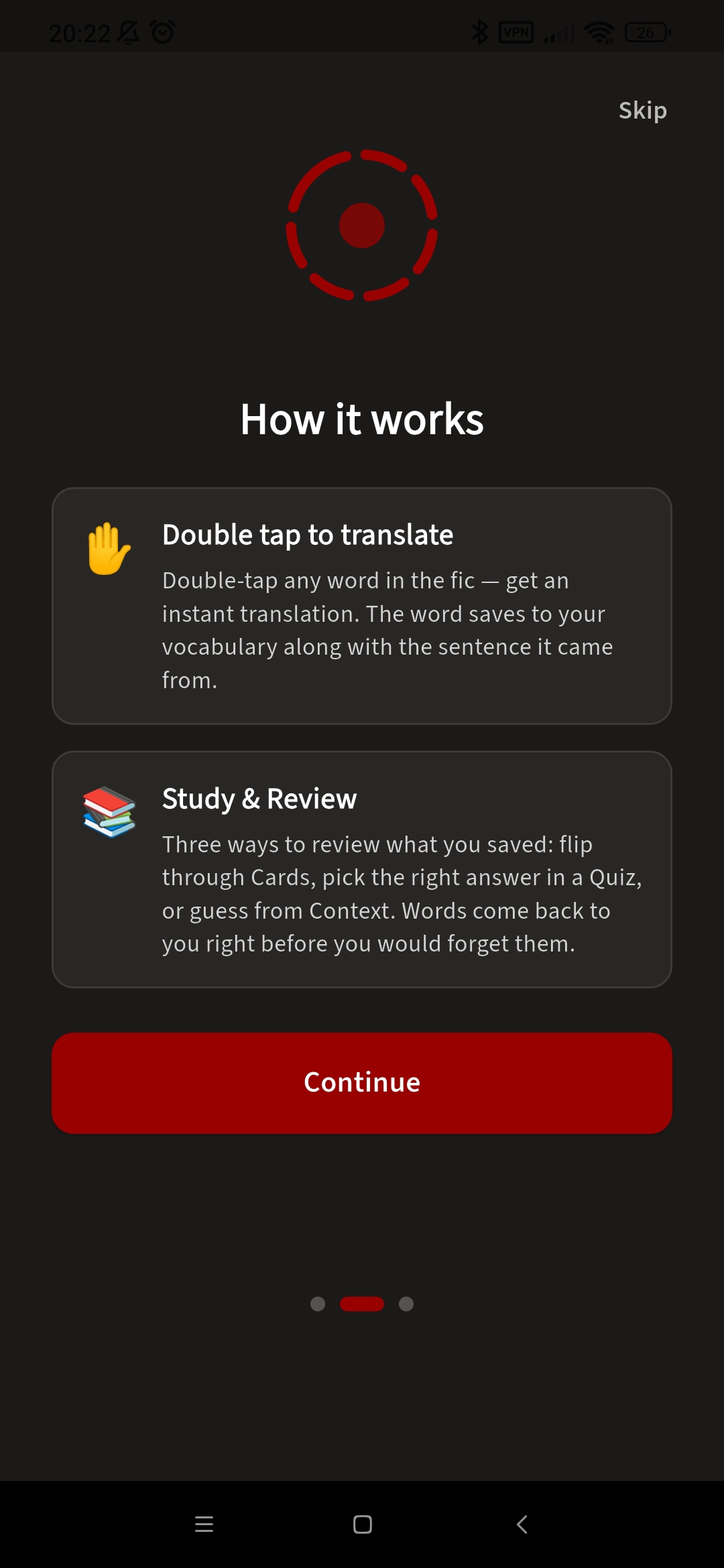
If you've ever tried reading in a foreign language, you know the drill — every unfamiliar word means another trip to a translator or dictionary. And trying to remember and (more importantly) write down all those words... ugh, it sounds like a chore and a huge time sink. The idea behind this app is simple: you can translate and learn words without breaking the flow of reading. Double-tap a word to translate it, save it with context to your personal dictionary, and then review the whole list using the famous SuperMemo spaced-repetition algorithm — battle-tested over decades by language teachers around the world.
No textbooks, no green owl threatening you — just your favourite characters and fandom achievements. Read what you love, gradually expand your vocabulary, and unlock achievements along the way. Best of all — words stick better because every word has context, which means you can always recall the scene from the fanfic where you first encountered it.
Security and privacy
All data is stored locally on the device. Nothing is uploaded to a server except anonymous analytics (if you've turned them on). Reading is handled through the built-in browser. Translations go through the Google Translate API — those are the only network requests besides loading AO3 pages themselves.
You can log in to AO3 through the app, but we don't store your login or password — they stay on the device.
Supported languages
The fanfiction language (source) and the translation language (target) are two separate lists — you can translate into more languages than you can read in. Tap a heading to expand the full list.
Fanfiction languages — source 31
- Arabic
- Belarusian
- Czech
- Danish
- Dutch
- English
- Estonian
- Filipino
- Finnish
- French
- German
- Greek
- Hebrew
- Hungarian
- Indonesian
- Italian
- Kazakh
- Latvian
- Lithuanian
- Norwegian
- Polish
- Portuguese
- Romanian
- Russian
- Serbian
- Spanish
- Swedish
- Thai
- Turkish
- Ukrainian
- Vietnamese
Translation languages — target 43
- Arabic
- Belarusian
- Bengali
- Cantonese
- Chinese (Simplified)
- Chinese (Traditional, Hong Kong)
- Chinese (Traditional, Taiwan)
- Czech
- Danish
- Dutch
- English
- Estonian
- Filipino
- Finnish
- French
- German
- Greek
- Hebrew
- Hindi
- Hungarian
- Indonesian
- Italian
- Japanese
- Kazakh
- Korean
- Latvian
- Lithuanian
- Malay
- Norwegian
- Polish
- Portuguese
- Punjabi
- Romanian
- Russian
- Serbian
- Spanish
- Swedish
- Tamil
- Thai
- Turkish
- Ukrainian
- Urdu
- Vietnamese
Lemmatization (word-form recognition) works only for English.
First launch
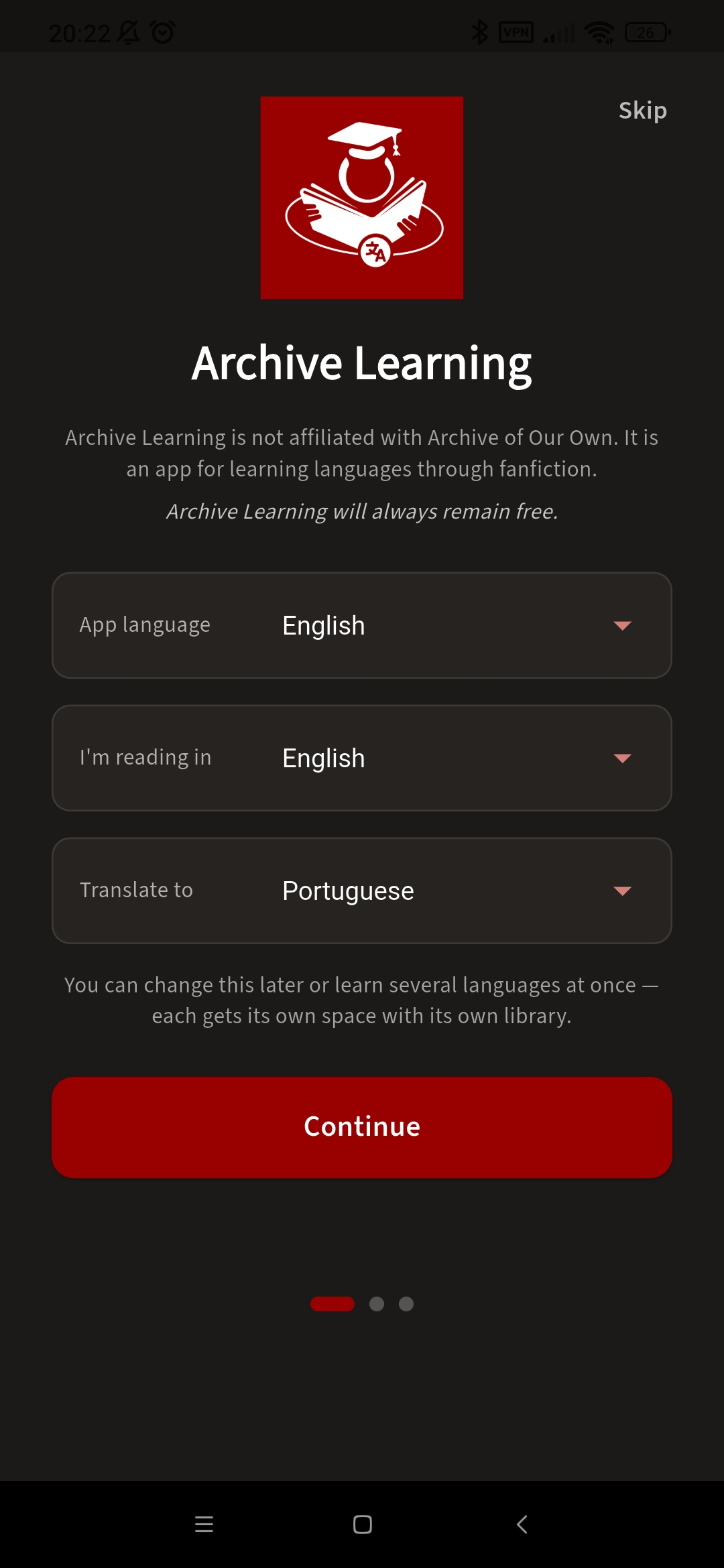
The first time you open the app, it will walk you through a short onboarding. You can skip it if you want — all the settings are available later in Settings — but we recommend going through it at least once so you know what's available.
Important steps
You'll be asked to pick three languages. The first is your interface language; the second is the language of the fanfiction you read (e.g. English); the third is your native language, into which the app will translate unfamiliar words (e.g. Russian). You can change all of these later in the corresponding settings section — for example, if you decide to read fanfiction in another language.
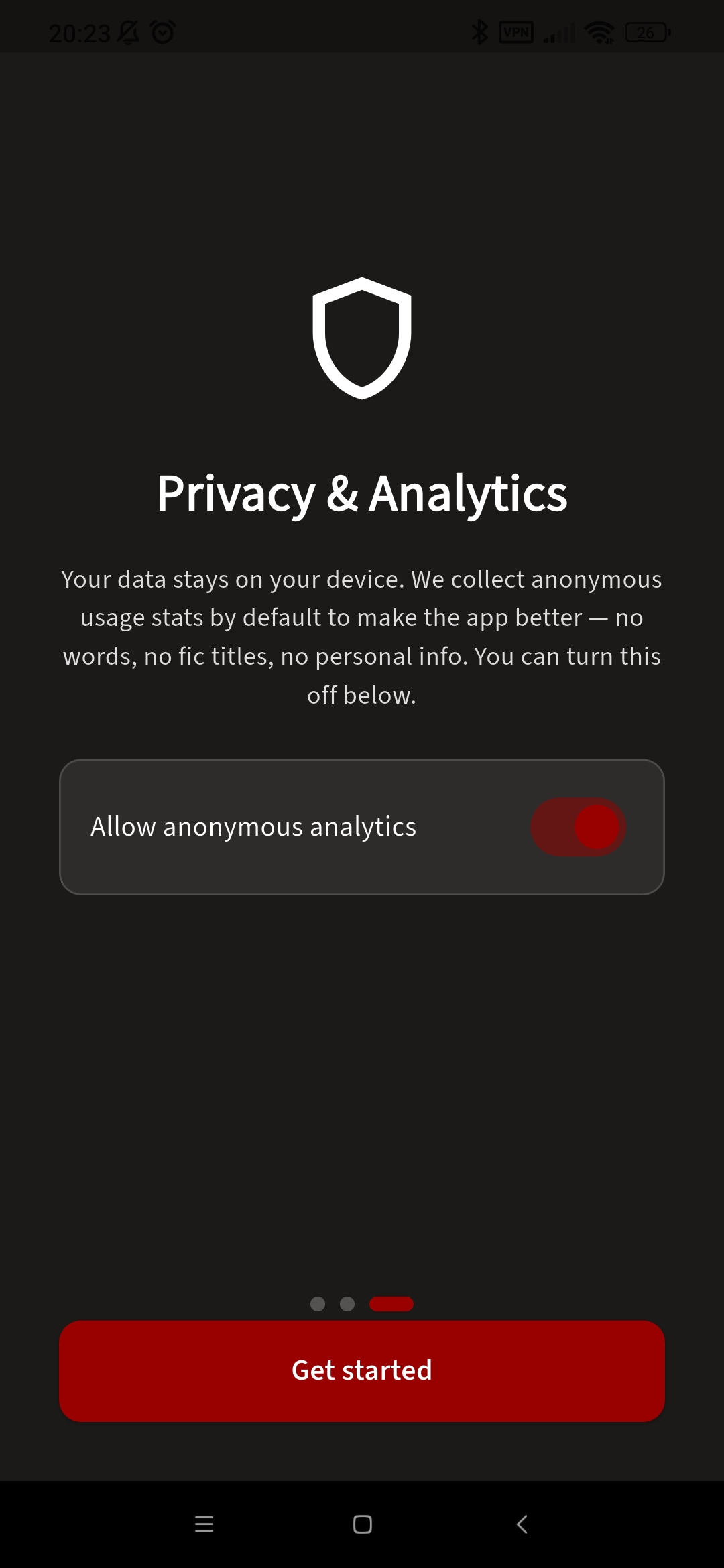
At one of the steps we ask about anonymous analytics. The app only collects technical data: which features are used, device type, country. No words, fanfic titles, or personal information are analysed or stored anywhere except on your own phone.
If you'd rather not share data with us, or feel uncomfortable doing so, that's totally fine — you have every right to opt out. That said, this data helps us improve the app, and you can always change your mind later in Settings. If you tap Skip at this step, the app will show the analytics question one more time in a dialog so you don't miss it by accident. That's the final checkpoint — after that, you're in.
Settings
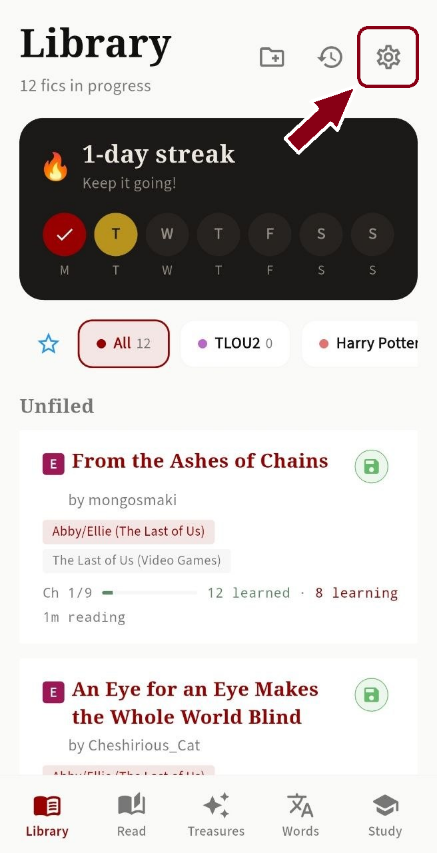
Languages
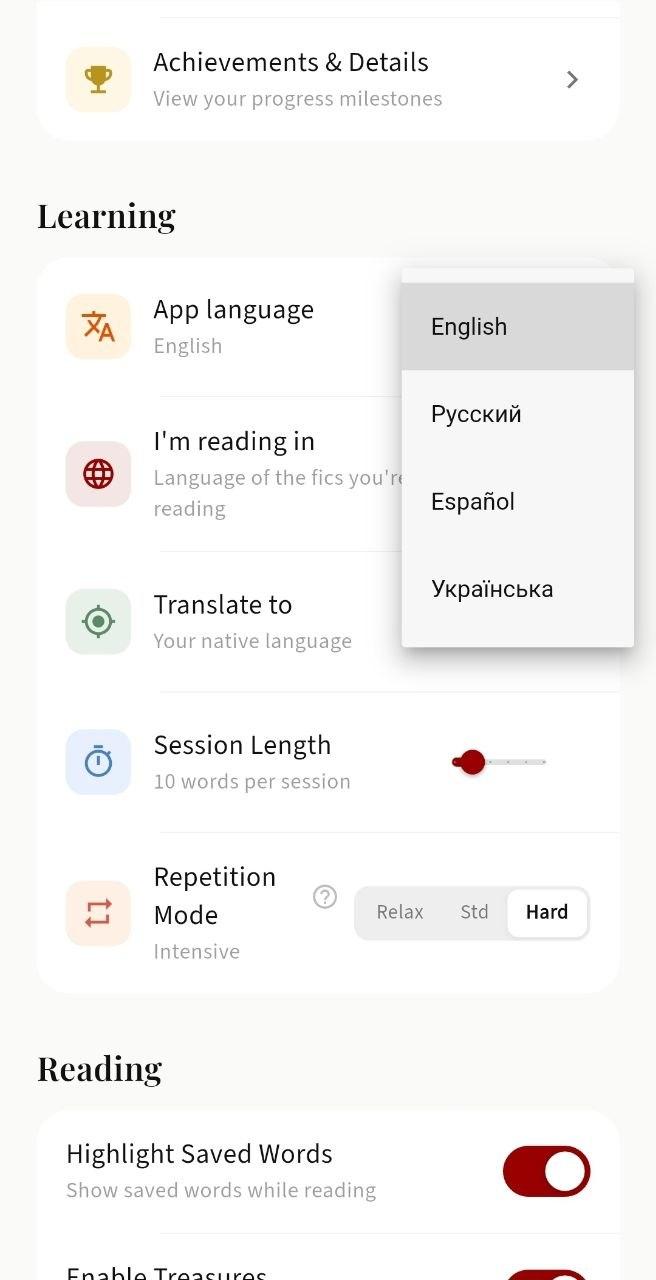
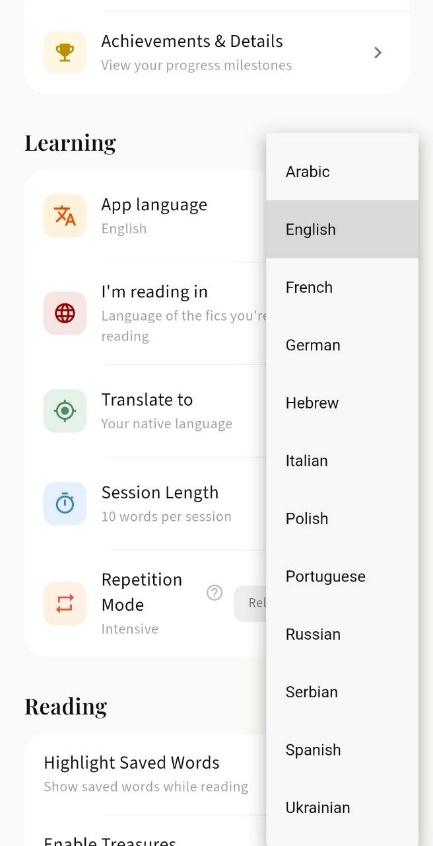
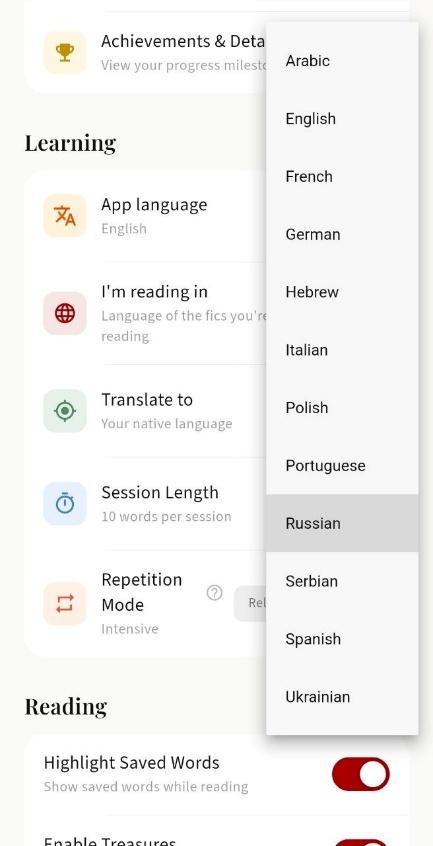
Here you can change languages: the app interface language, the fanfic language, and the translation language. The interface is available in 4 languages: English, Russian, Spanish, and Ukrainian. Fanfic and word translation support 12 languages: Arabic, English, French, German, Hebrew, Italian, Spanish, Portuguese, Serbian, Polish, Russian, Ukrainian.
Password and auto-lock
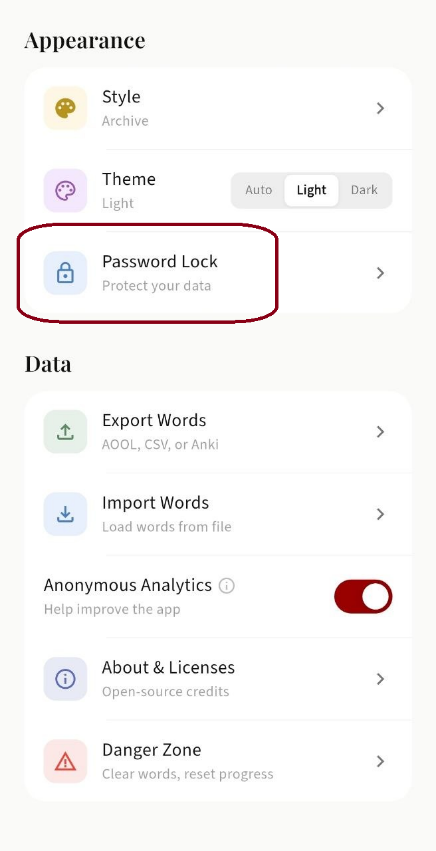
You can set a password for the app. The password is hashed with SHA-256 and stored locally. There's also a password hint and a timer-based auto-lock — if you put the app in the background and come back after the set time, you'll need to enter the password again.
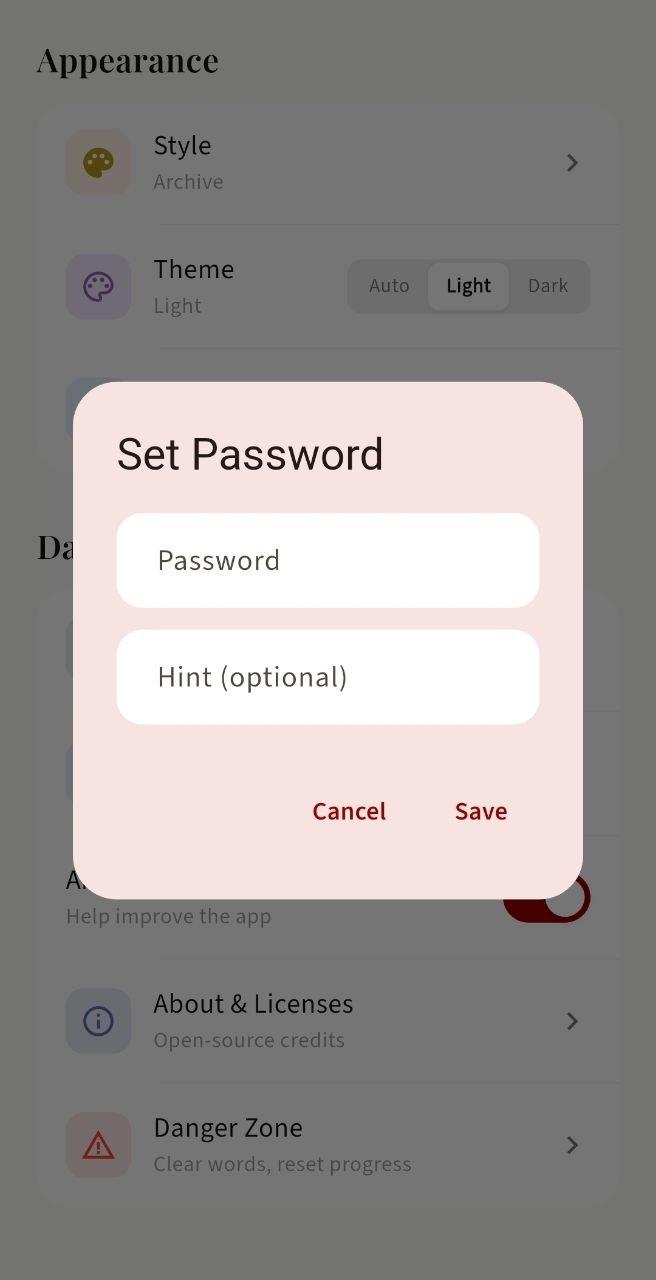
You can also log in to AO3 through the app, but we don't store your login or password — they stay on the device.
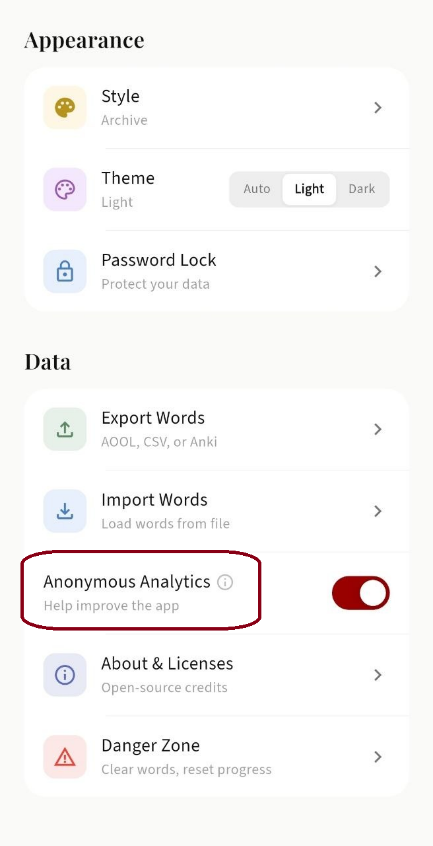
Analytics
Anonymous analytics via Firebase. Only feature-usage data, device type, and country are collected. No saved words, no fanfiction, nothing personal ever leaves your device. You can turn it on or off at any time.
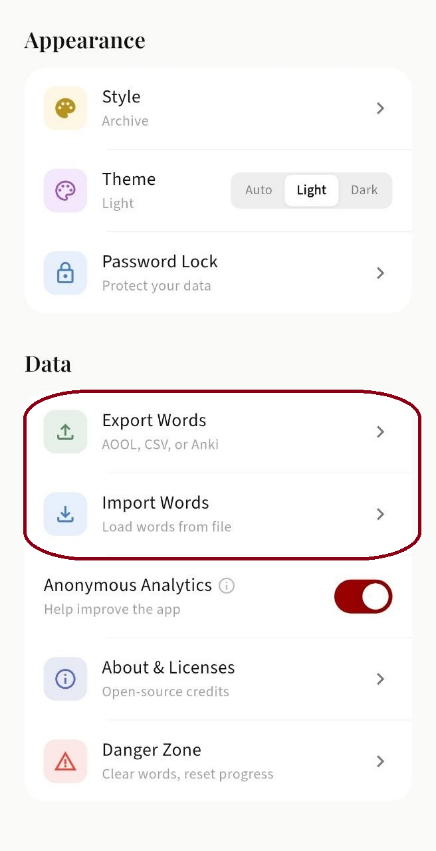
Data
Export and import data in the .aool format (Archive Learning). Words, bookmarks, folders, quotes, and favourites are exported. Since all your progress is stored on the phone itself, this lets you move your progress to another device without losing your bookmarks. You can also open a .aool file through your file manager — the app will offer to import the data automatically.
Library
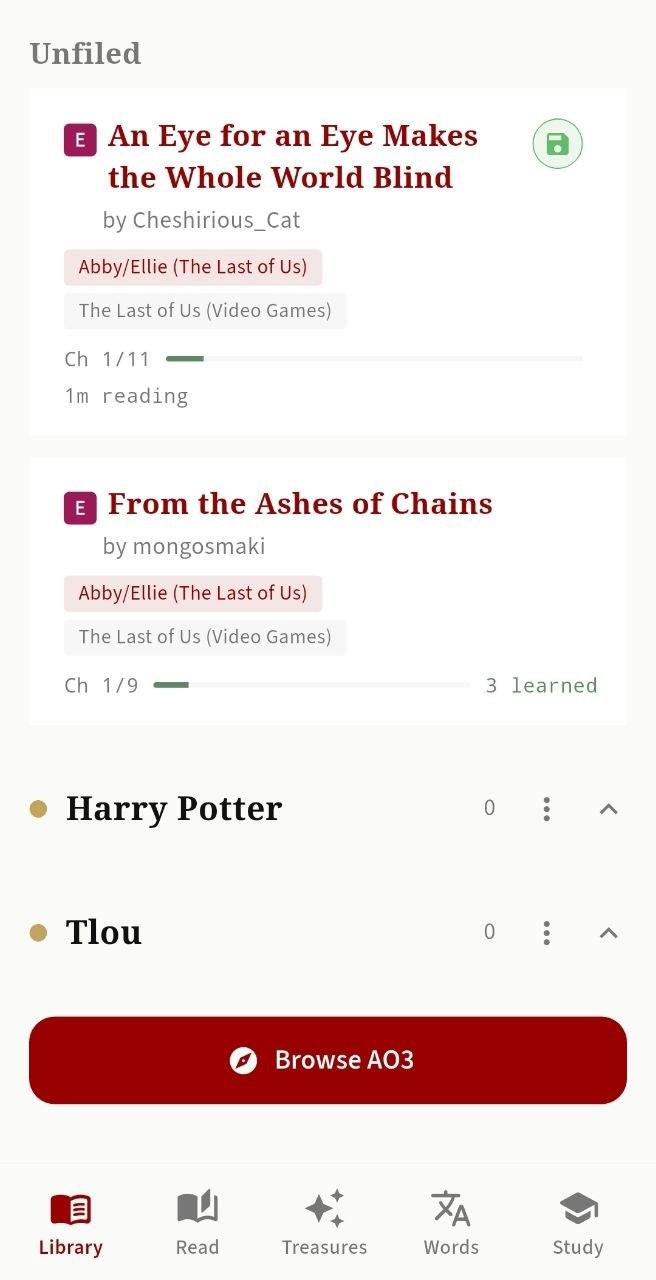
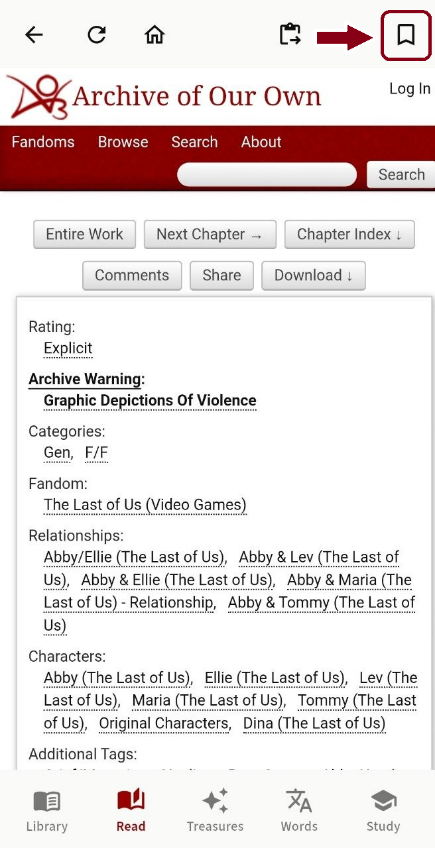
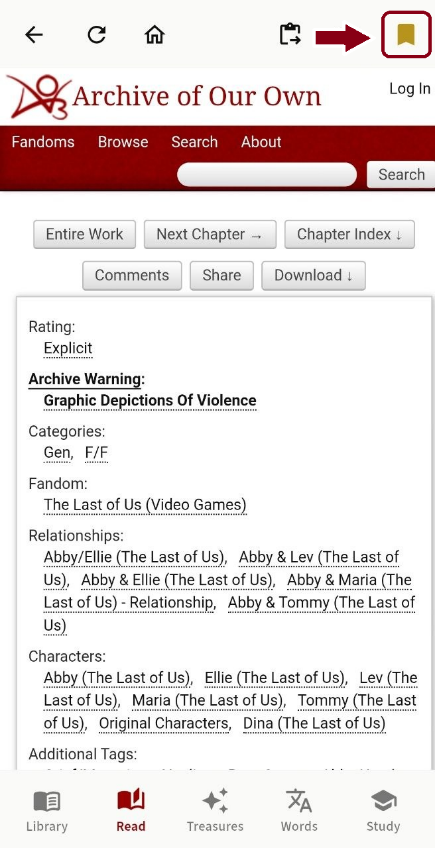
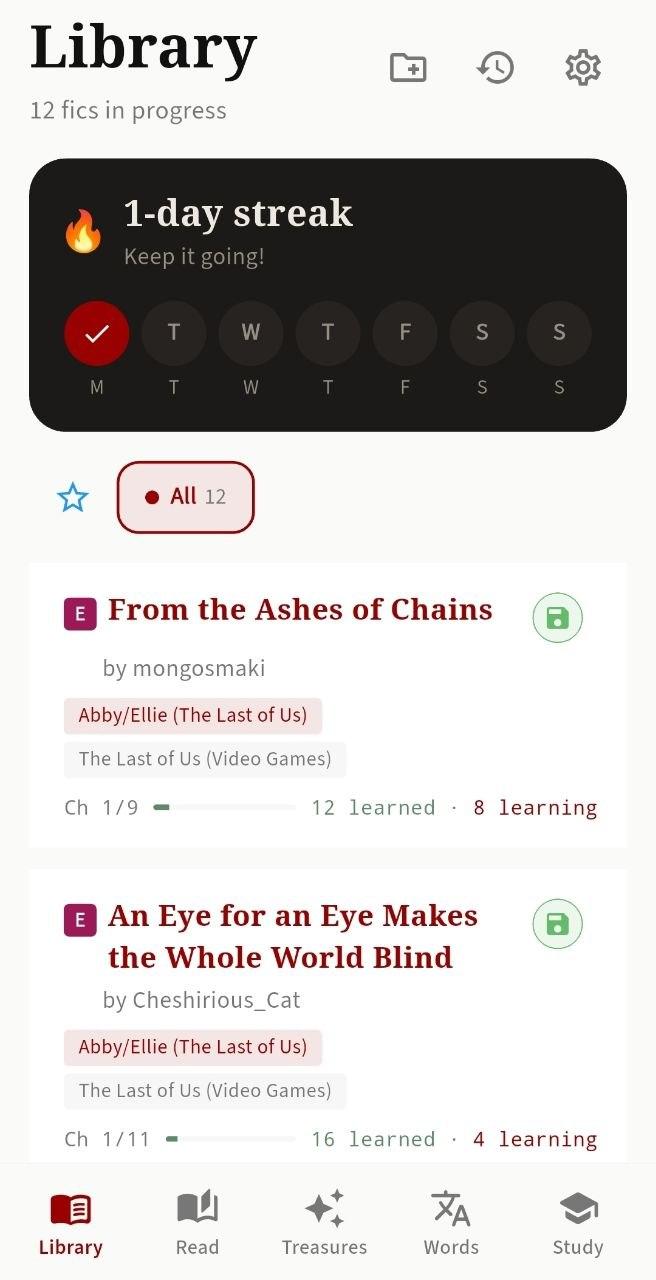
The Library stores every fanfic from which you've saved at least one word, or that you've bookmarked while reading. Each work is saved as a card with its title, author, and reading progress. To save a fanfic to the library, tap Browse AO3 and tap the bookmark icon in the top right. You can remove a fanfic from the library with a left swipe, and you'll be asked whether to keep the words you added from it in your dictionary or delete them along with the work.
Folders
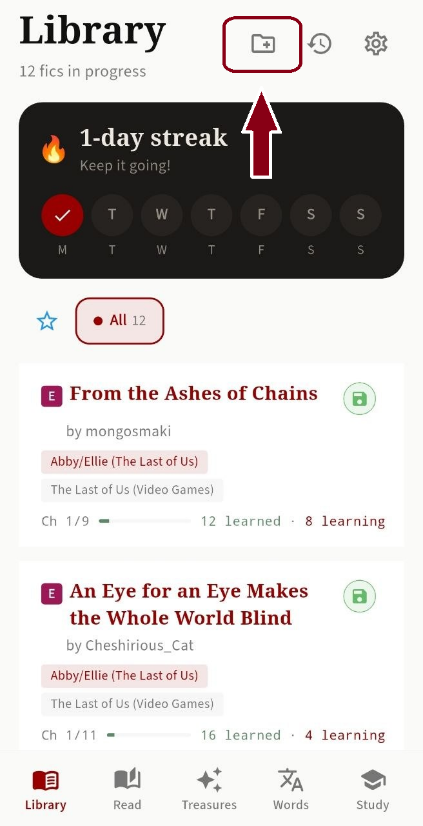
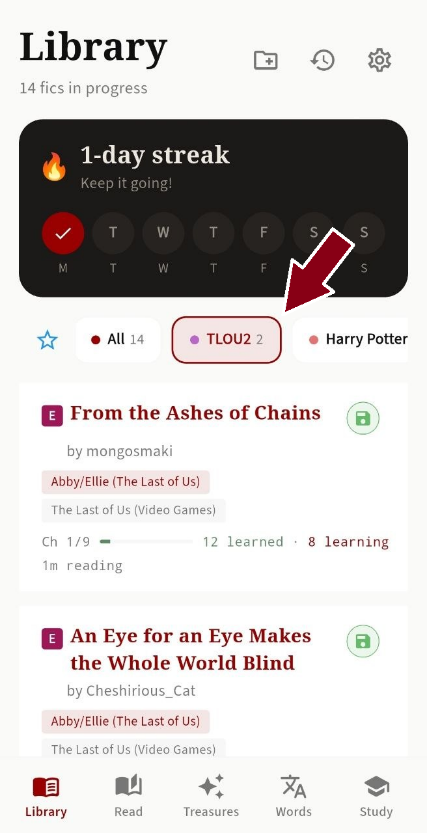
Fanfics can be organised into folders. Create a folder, long-press a card, and pick the folder to move it to. All new fanfics and anything not in a folder lands in the Unfiled section. You can rename or delete a folder; deleting a folder moves its fanfics back to Unfiled. The folder containing the most recently opened fanfic always appears first in the list.
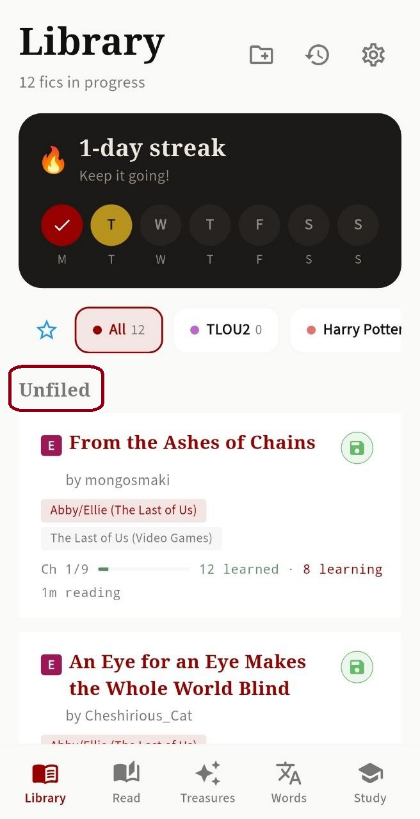
The library also has a special folder — Favourites — marked with a star. You can save tag-based search queries with their filters, or collections/series of fanfiction here. To add a search or a collection to this folder, tap the star icon in the top right corner (where the bookmark usually lives).
Streak
The app counts how many days in a row you've reviewed words. Your current streak is always visible on the library card, and you can find more detailed stats in Settings.
Reading history
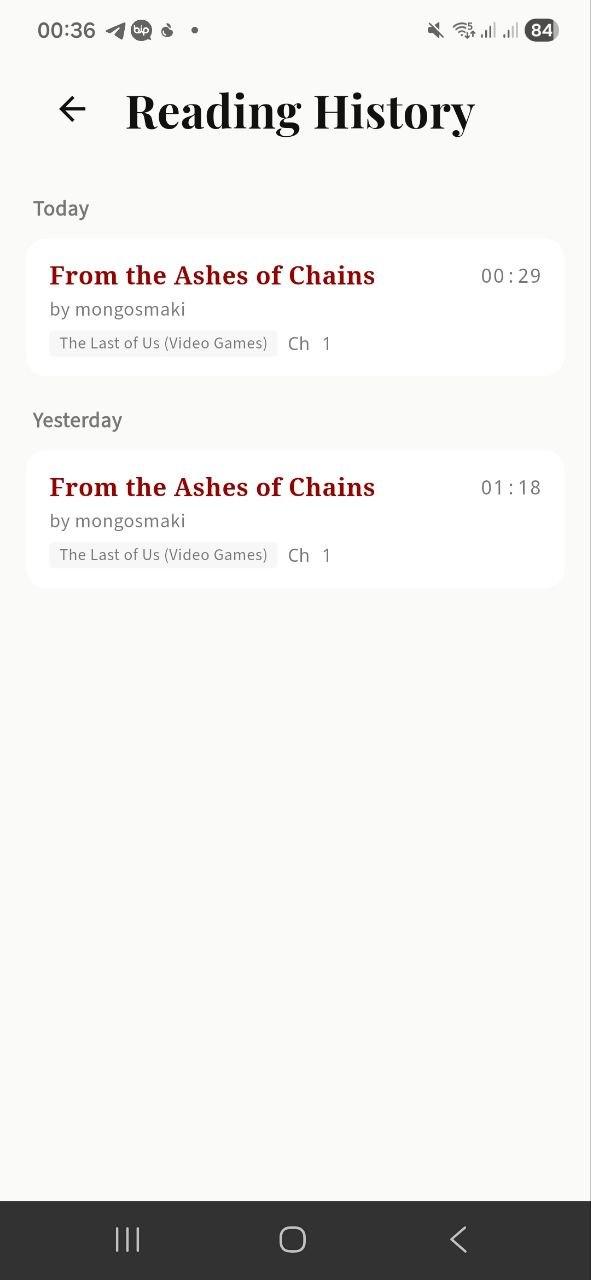
Reading History — a full record of every fanfic you've read through the app. Open it from the Library by tapping the clock-and-arrow icon in the top menu. You can clear the history if you want.
Reader (Read)
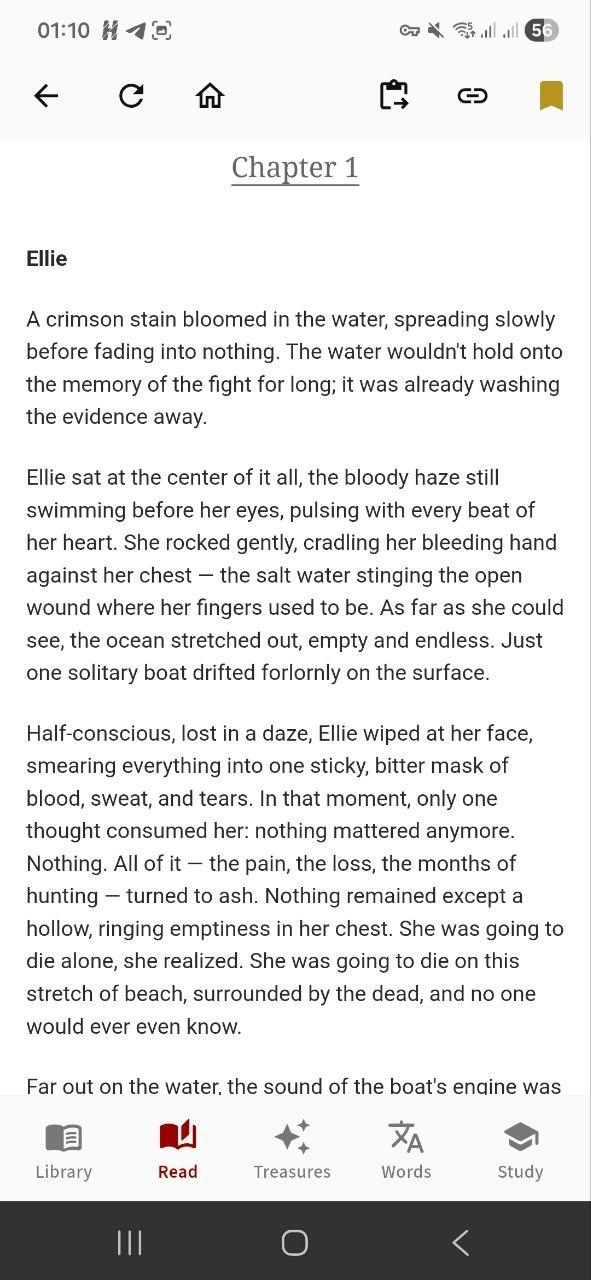
The second tab, and the heart of the app. This is a built-in browser that only opens AO3. The look of this tab — apart from the system buttons — depends on your AO3 profile settings. So if you've applied a custom skin on AO3 instead of the default, it'll work here too.
Translating words
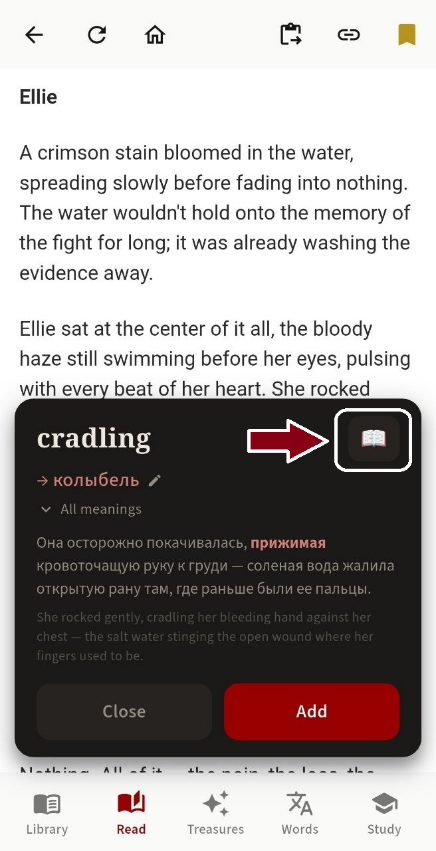
To translate an unfamiliar word, double-tap it in the text. A pop-up appears with the translation and context.
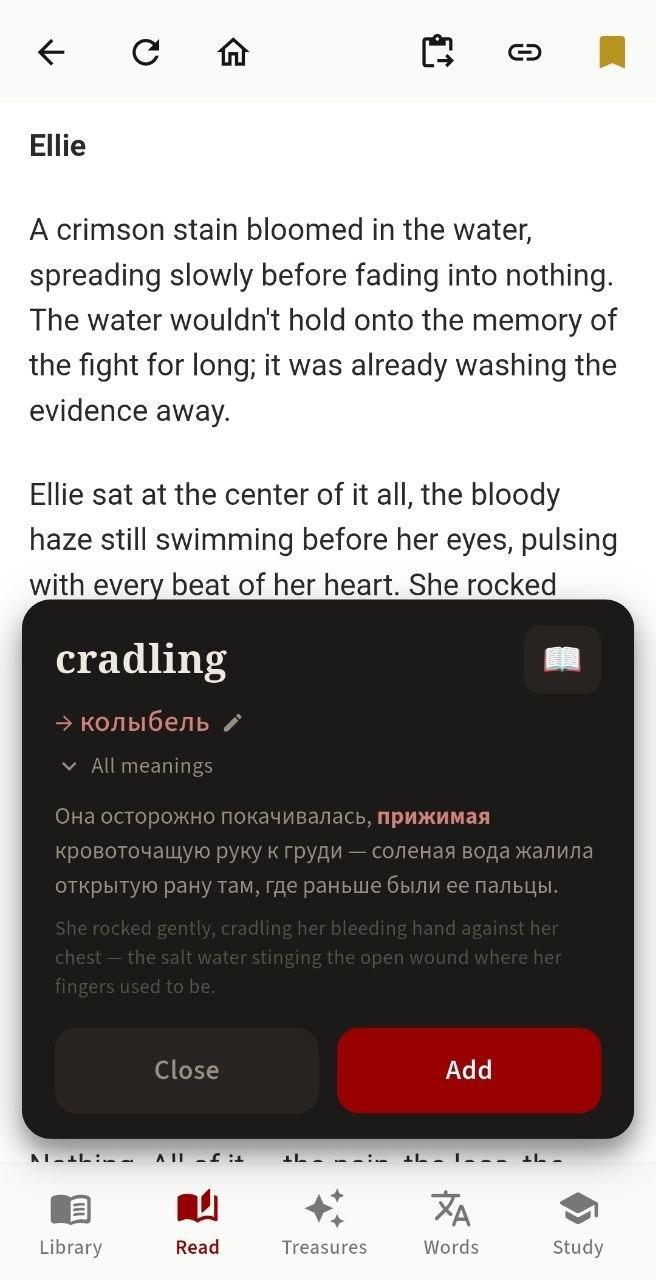
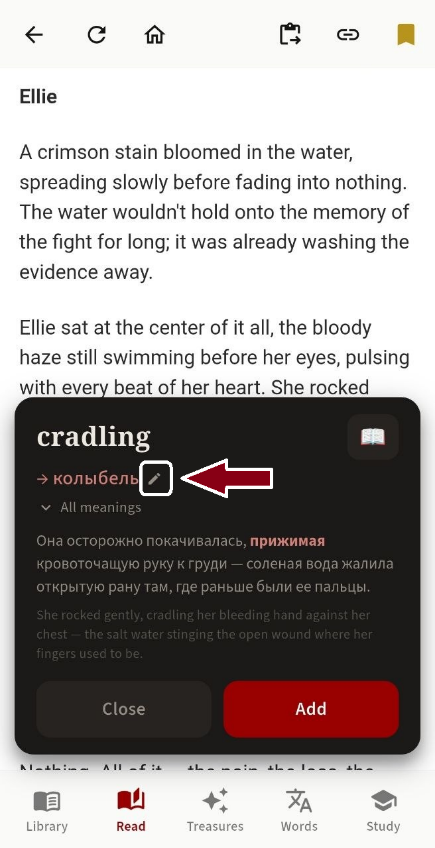
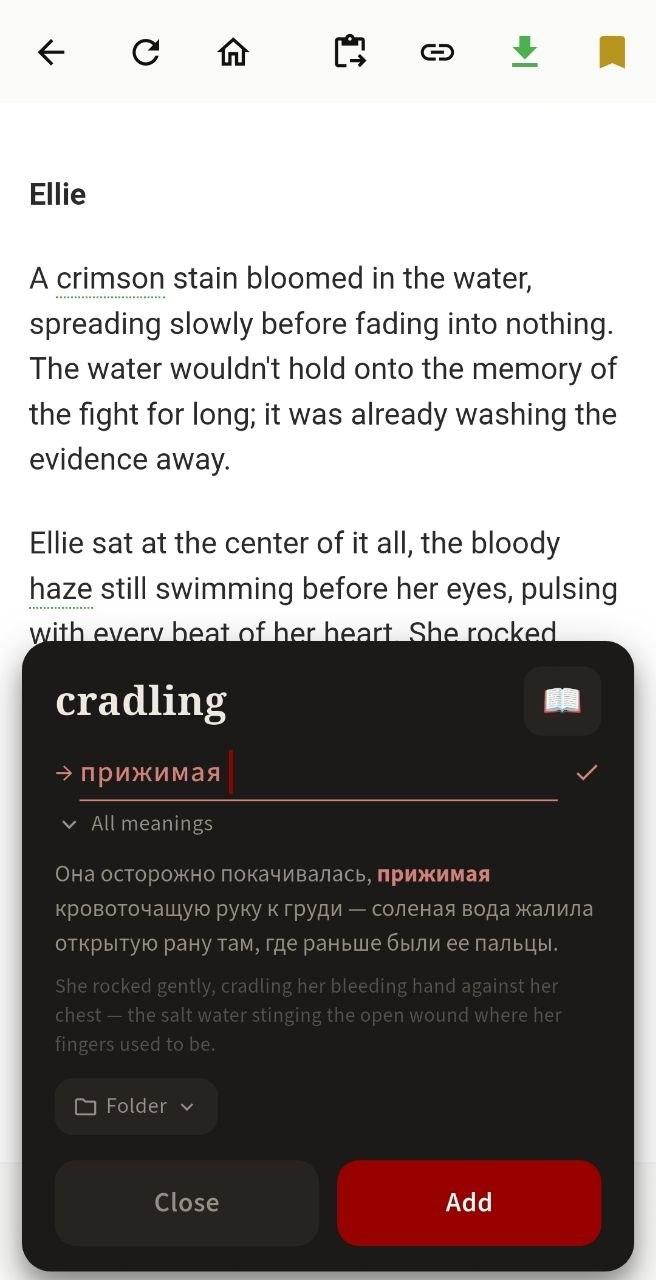
Sometimes a word's meaning shifts with context, so if you want to save the word with a different translation, tap the pencil to write your own. You can also see other meanings by tapping the phrase All meanings. Tap Add to add the word to your personal dictionary. Words — just like fanfics — can be organised into folders (more on that later), and if folders already exist, the window will prompt you to pick one. The sentence the word appeared in, the fanfic's title, and the author are saved alongside the word.
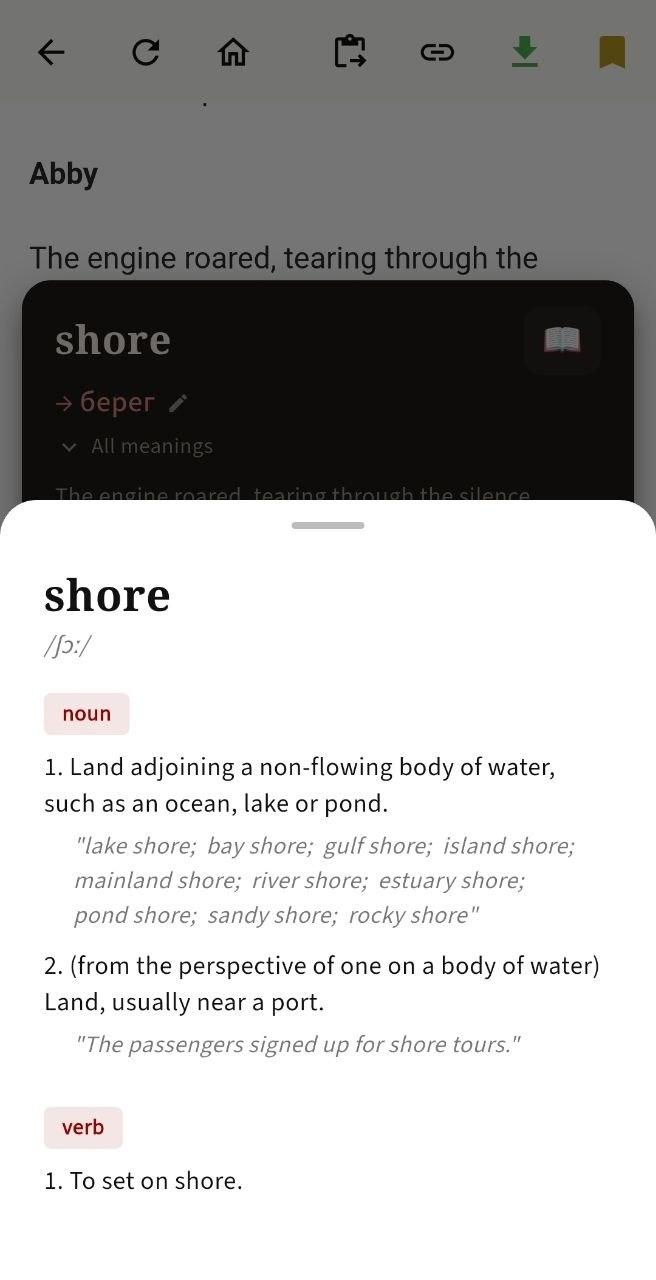
If you tap the book icon in the pop-up card, you'll see a dictionary entry in English. Some specialised words might not be in the dictionary — in that case the book icon simply won't appear.
Alternative way to add words
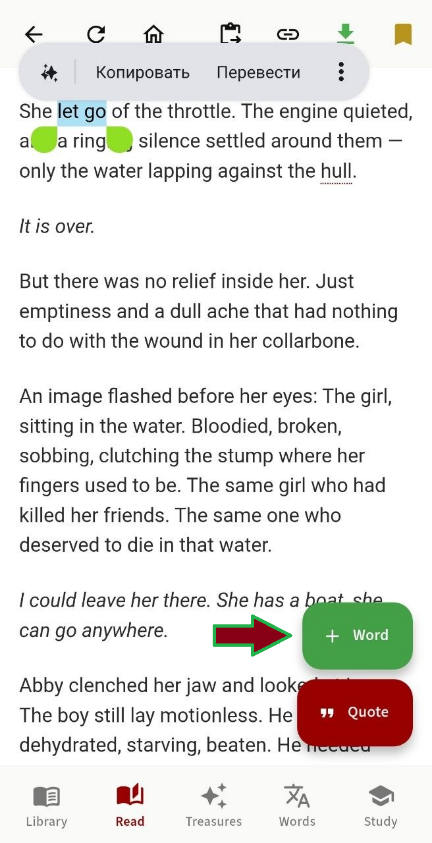
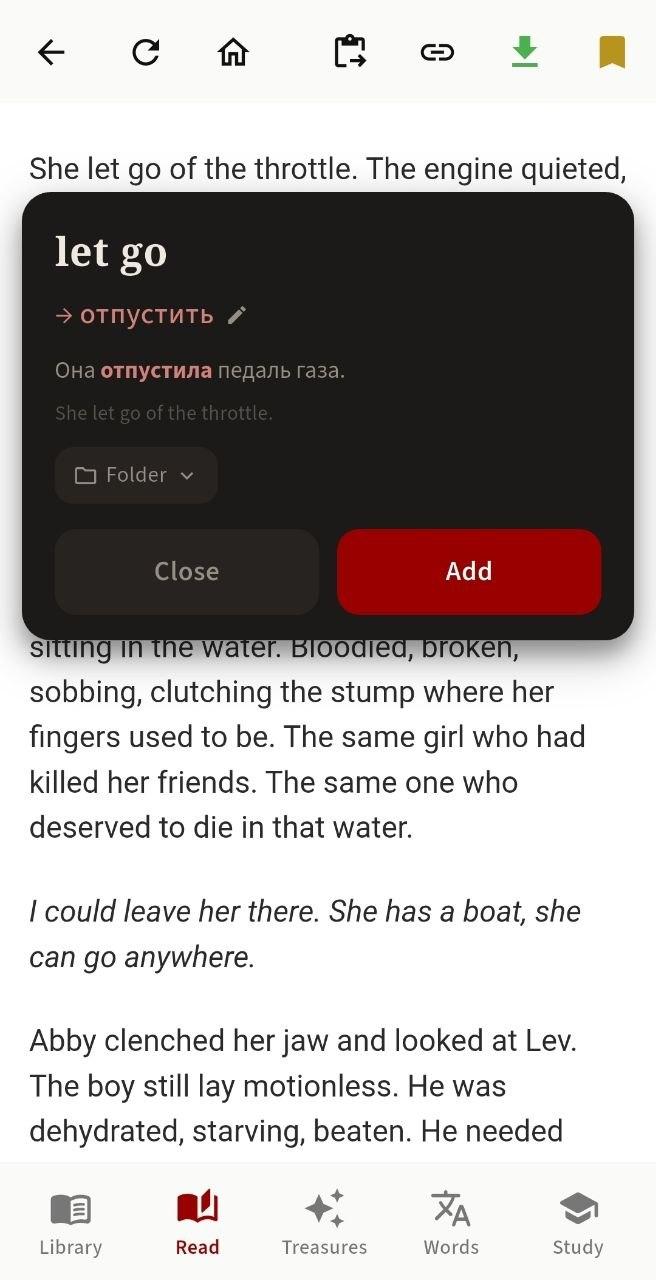
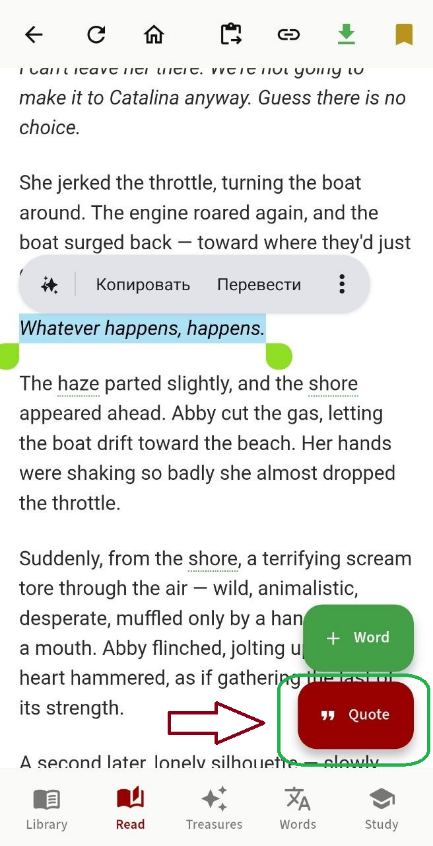
You can also add words by long-pressing and selecting. This works well for phrasal verbs and fixed expressions. You can select up to three words at once. After selecting, tap the green + Word button, then Add as usual. If you want to save a longer fragment as a quote, use Treasures (we'll get to that shortly).
Word highlighting
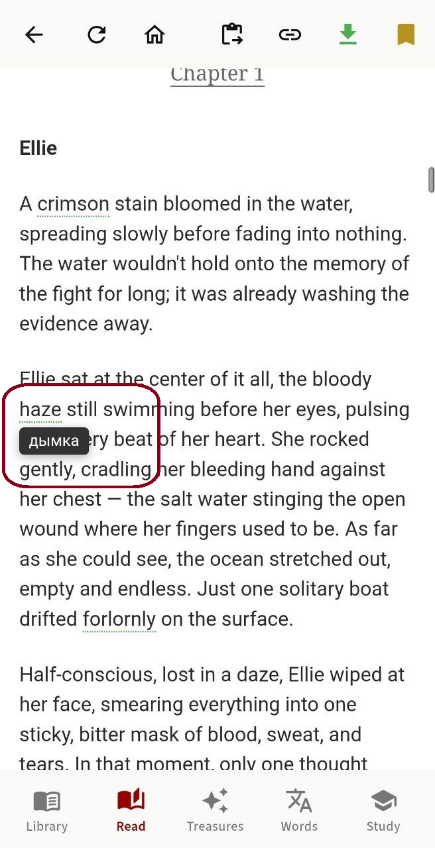
When you return to a fanfic in the Read tab, the app highlights words you've added to your dictionary right in the text. A single tap on a highlighted word gives you a quick reminder of its meaning. Tap anywhere on the screen to dismiss the reminder. Green-dashed underlines mark words you've already learned; red ones mark words you're still learning. Remove a word from the dictionary and the highlight disappears.
Reading progress
The app remembers where you left off in a chapter, along with the chapter number. When you come back to a fanfic, it automatically opens to that spot. This can take a moment, so you may need to wait briefly.
Font settings
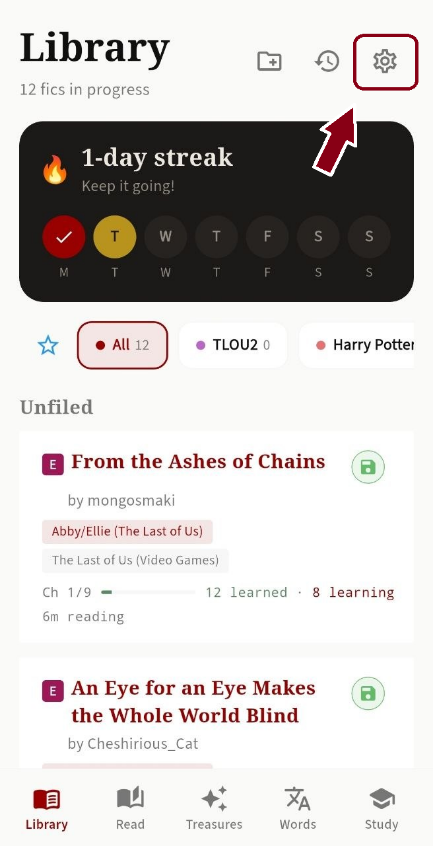
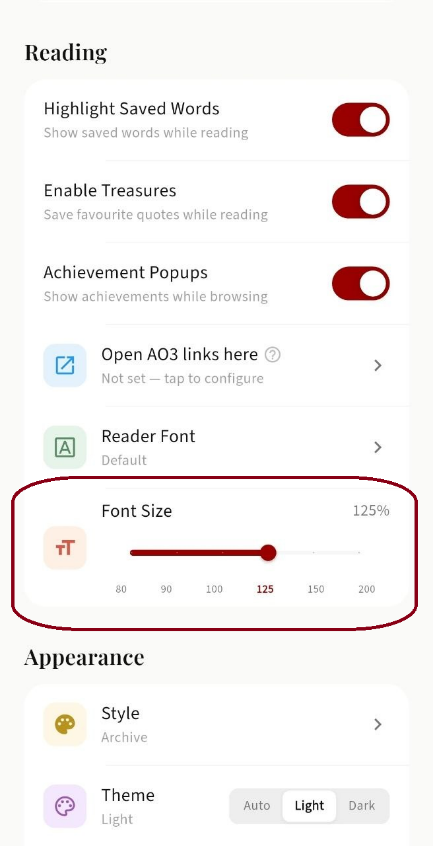
You can change the text size and font in the reader from Settings. Handy on small-screen phones or when you need a specific font or size.
Saving to device for offline reading
From a fanfic page you can download it for offline reading. Just tap the arrow in the top toolbar. Once downloaded, a floppy-disk icon appears on the fic's card in the library — tap it to open the offline version.
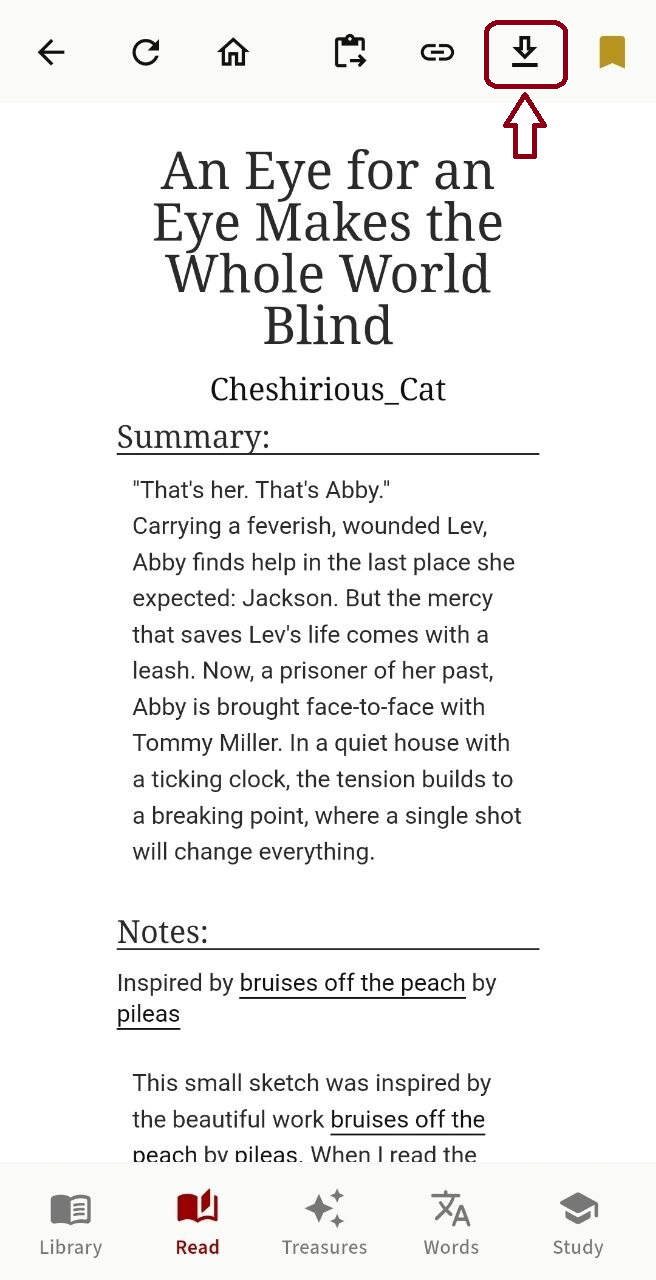
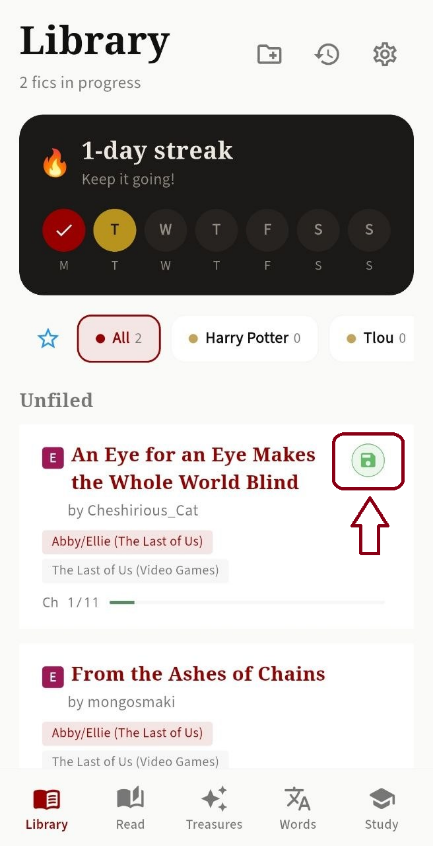
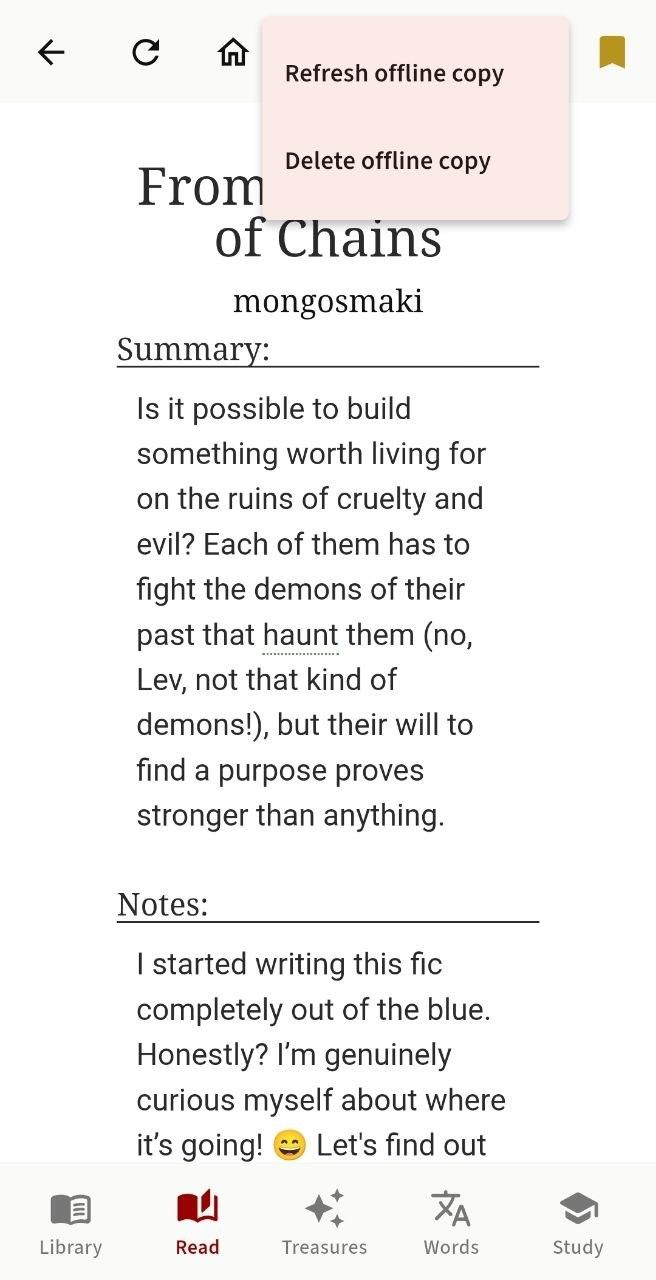
Saving the fanfic to your device keeps your online and offline reading in sync — you can switch between them and pick up at the chapter where you stopped. Time and reading history are tracked just as they are online. If the author updates the fanfic after you've downloaded it, the green arrow turns orange. If the fanfic is already on your device, tapping the arrow gives you options to "remove the saved version" or "update".
Treasures
An optional tab (enabled by default, but you can turn it off in Settings). This is where you keep quotes from fanfics you loved — the lines you'll want to re-read on their own or share with friends. Don't try to stash entire chapters in here, though — they won't fit on a card. The sweet spot is up to 500 characters.
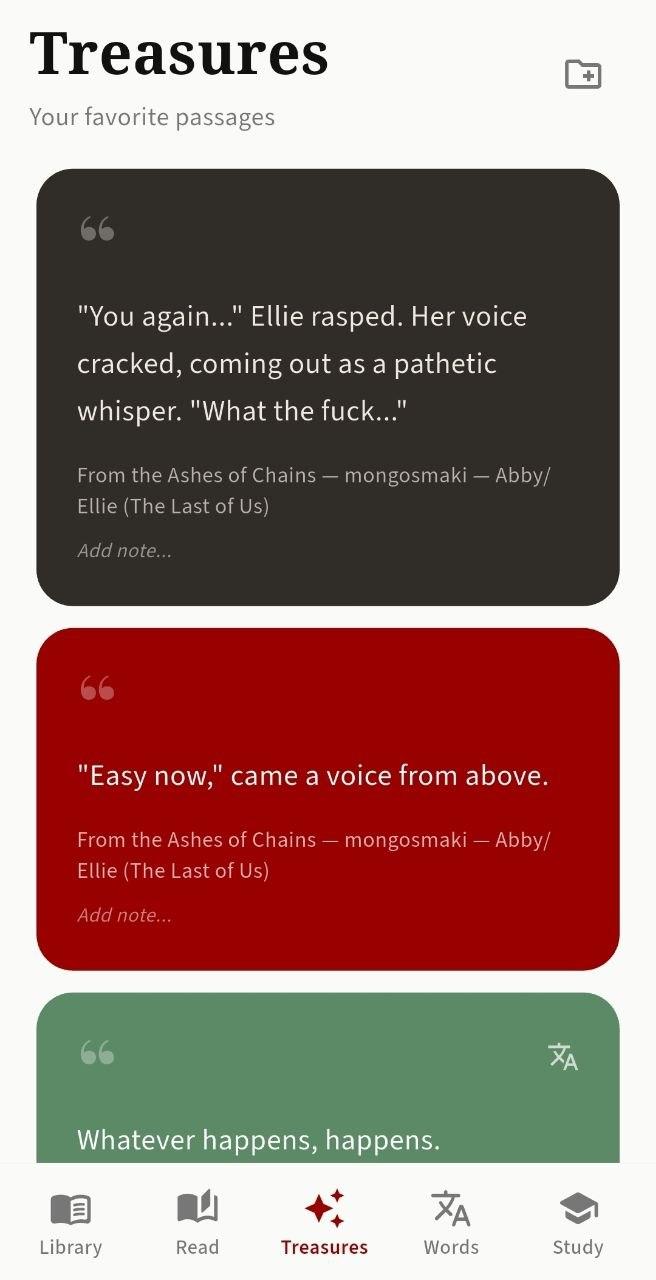
To save a quote, select text in the reader and tap Quote. The quote is saved with the fanfic's title and author. Quotes can also be sorted into folders and shared — the app offers a few design options for sharing.
Words (Dictionary)
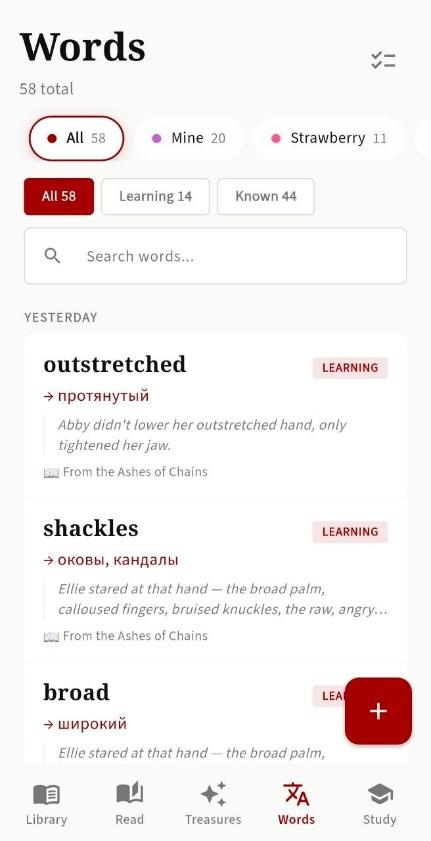
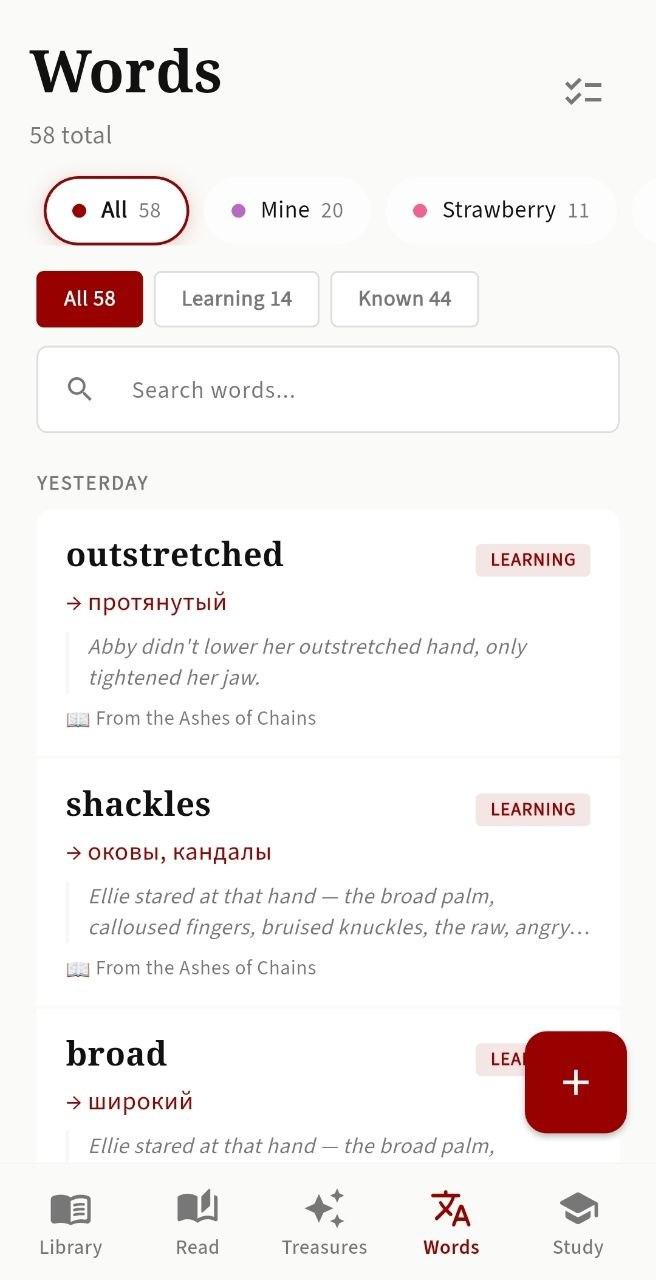
This is where all the words you've added live. They're grouped automatically by date added and learning progress.
Filters and search
Words can be filtered by status: All, Learning (still working on it), Known (already learned). There's also a search that looks at both the original word and its translation.
Quick add
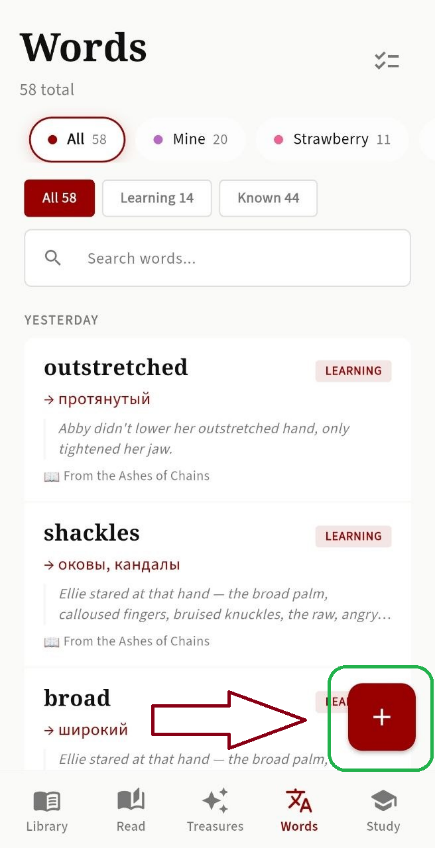
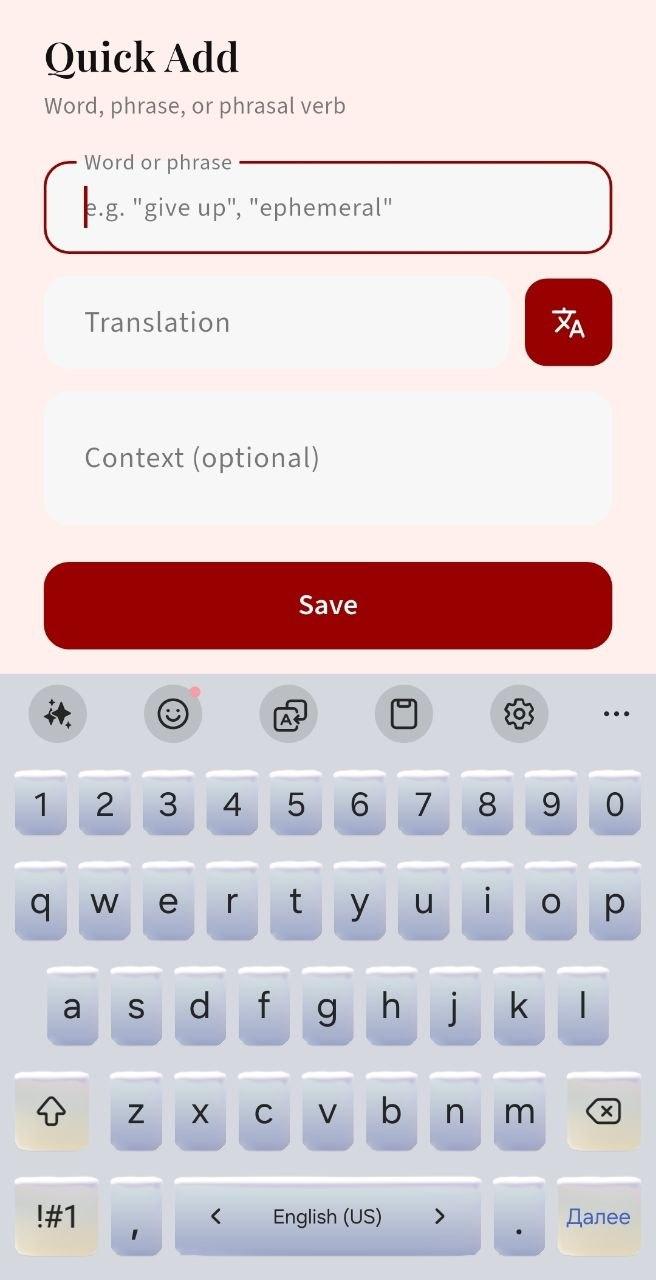
If you want to add a word manually, without reading a fanfic, there's an Add Word button. Type the word, the translation, and the context (if you have one).
Lemmatization
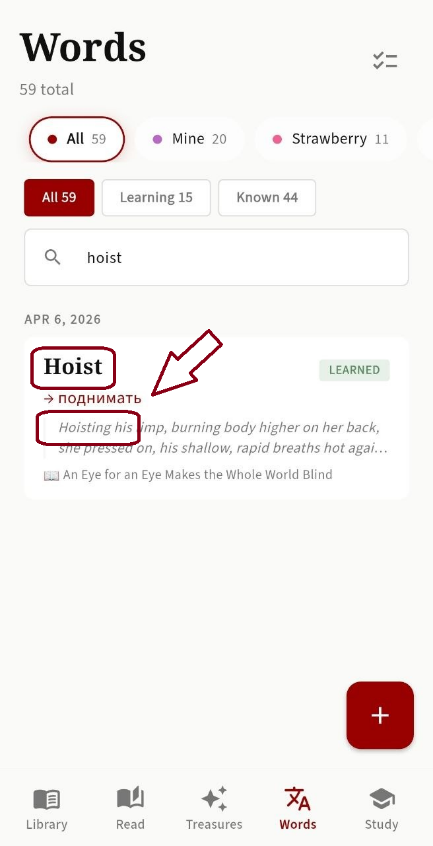
For English the app can recognise word forms. If you've already saved run, the app knows that ran and running are the same thing — it warns you that the word is already in your dictionary and asks whether to save a duplicate. The English lemma dictionary covers 156,000 word forms.
Dictionary organization
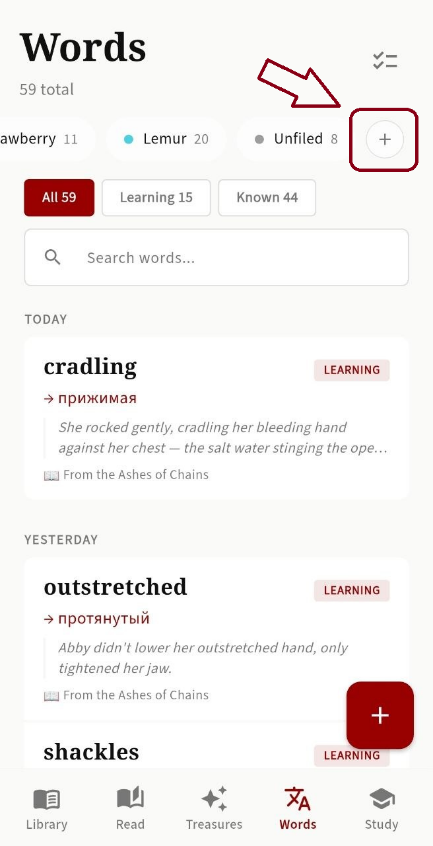
You can group words into folders any way you like: by part of speech, by fanfic, by author, by theme. To create a folder, tap the plus icon in the top right.
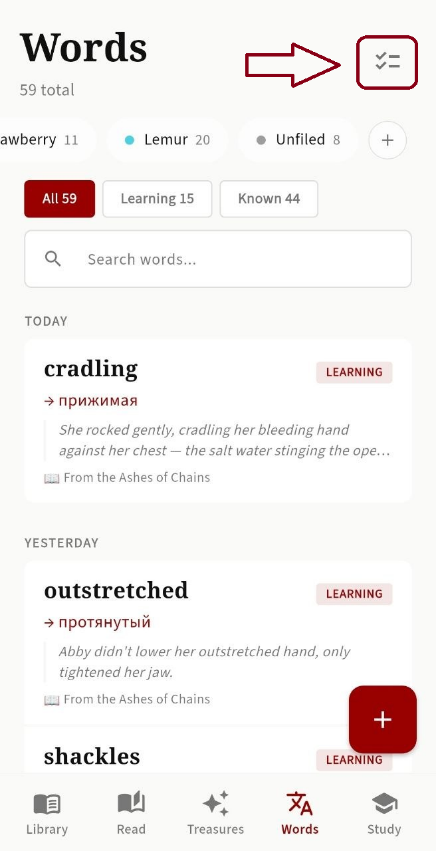
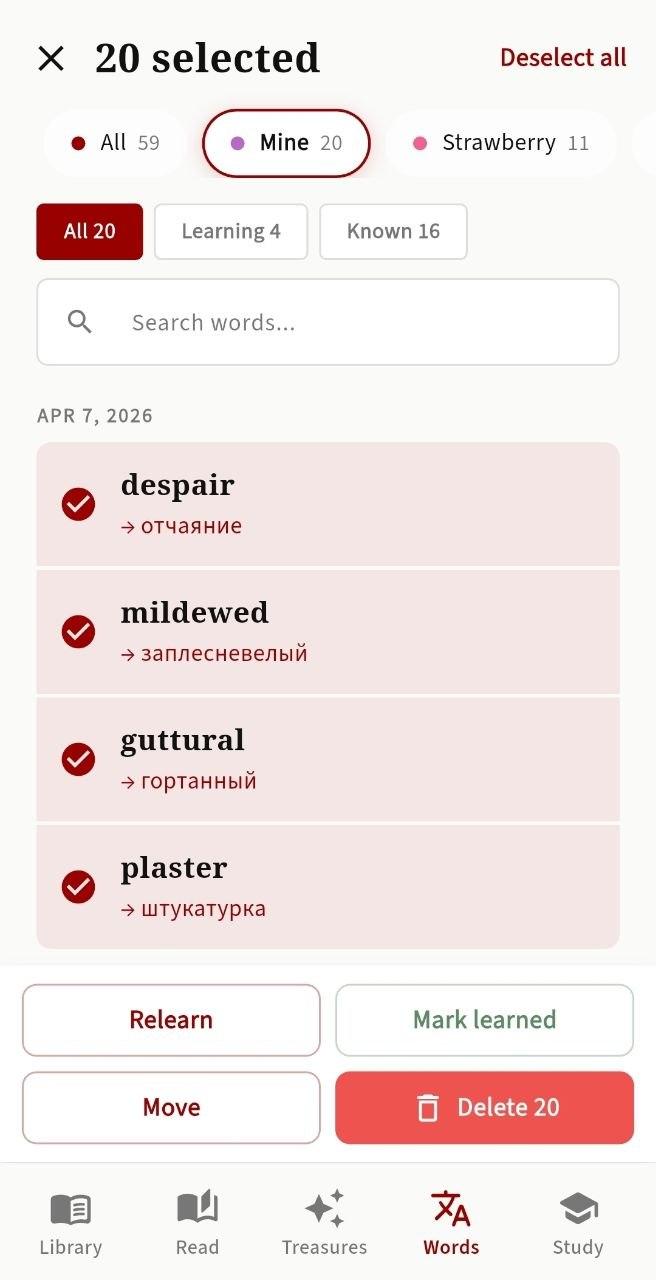
Every word in the dictionary can be edited: change the translation, the context, mark it as learned, or move it back into learning. You can edit words one at a time or select several and apply changes to all of them at once.
Study
This is where you go to review your words. You've got three training modes to pick from.
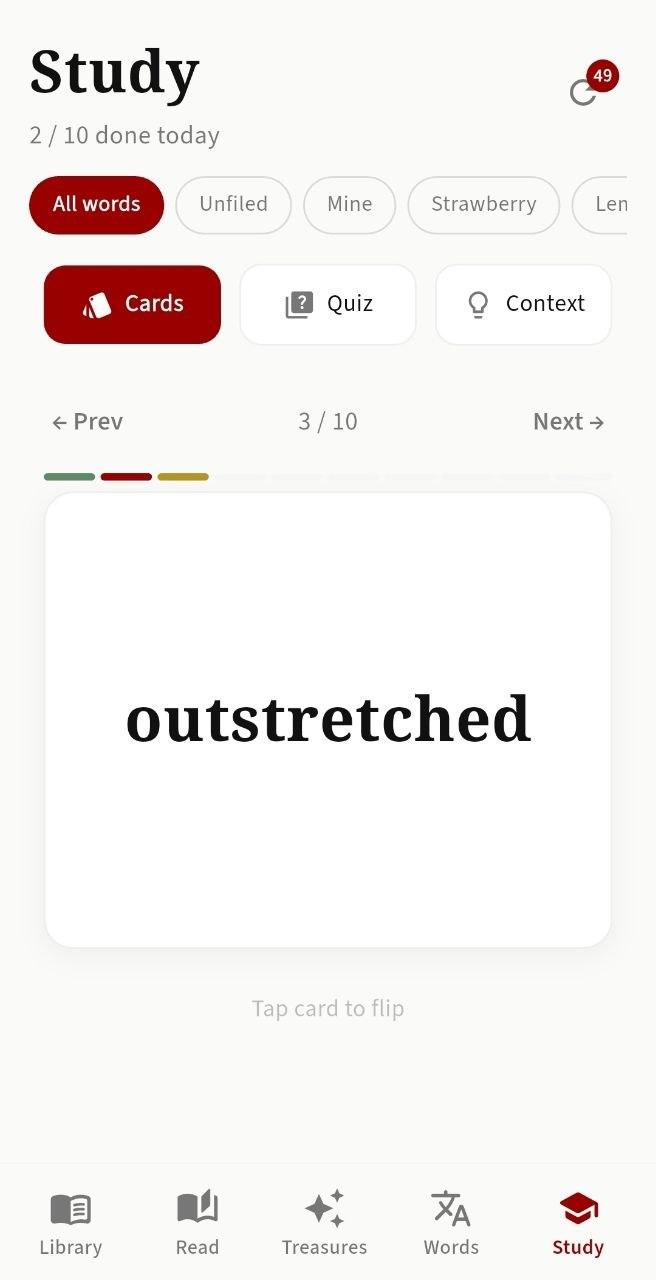
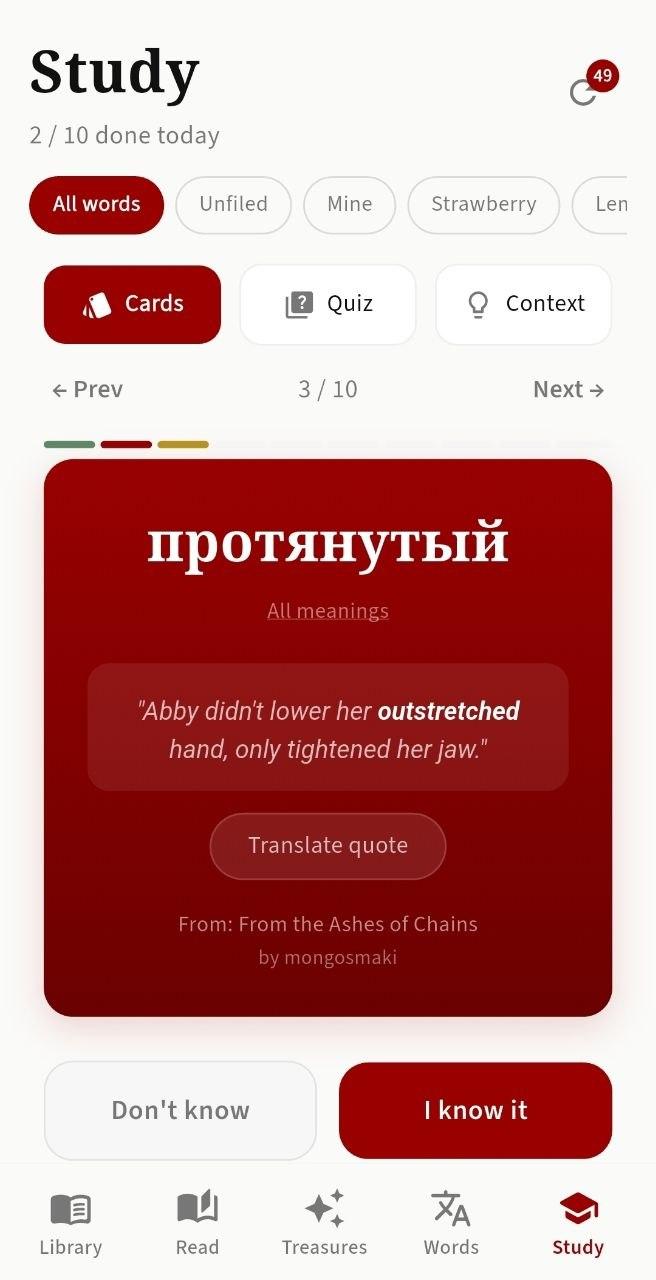
Cards — flashcards
The classic. You see a word on one side, tap it, and the card flips to show the translation. You answer: I know it, or I don't. You can swipe forward and back without tapping the buttons.
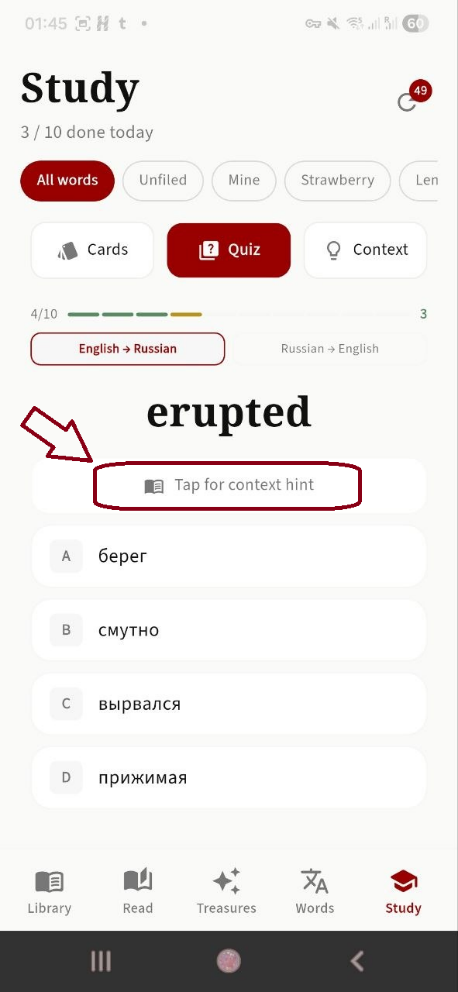
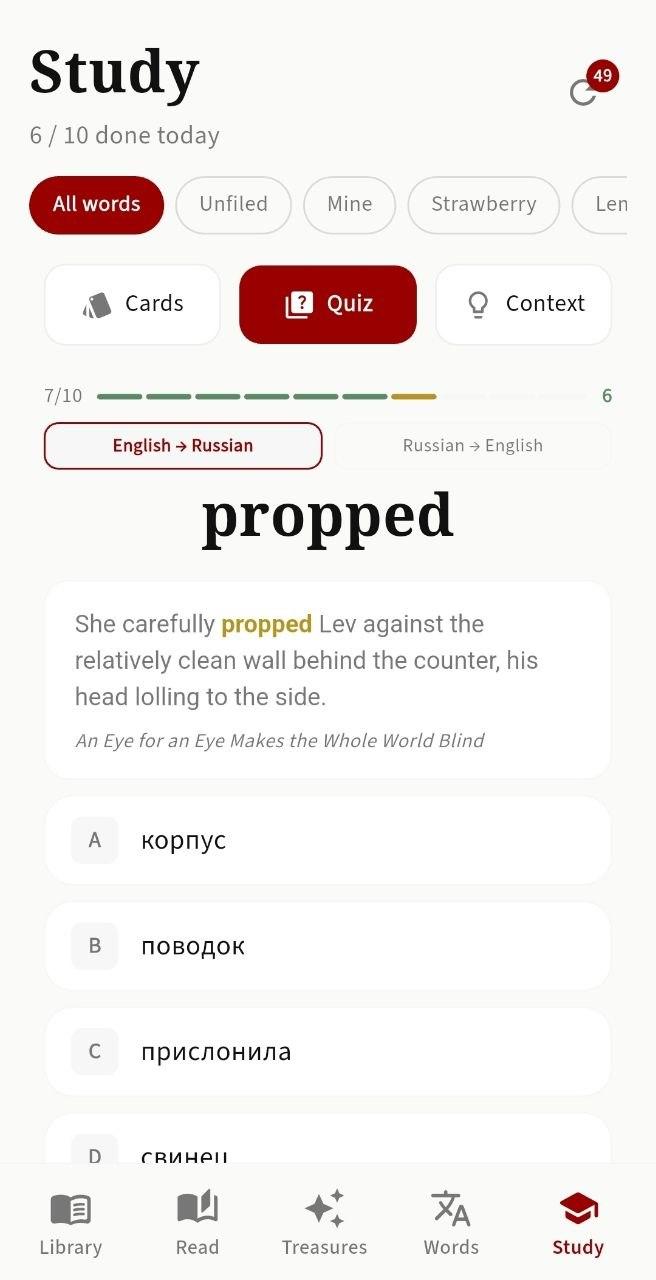
Quiz — multiple choice
The app shows you a word and four translation options, one of which is correct. The wrong options are picked using lemmatization, so they look plausible rather than absurd.
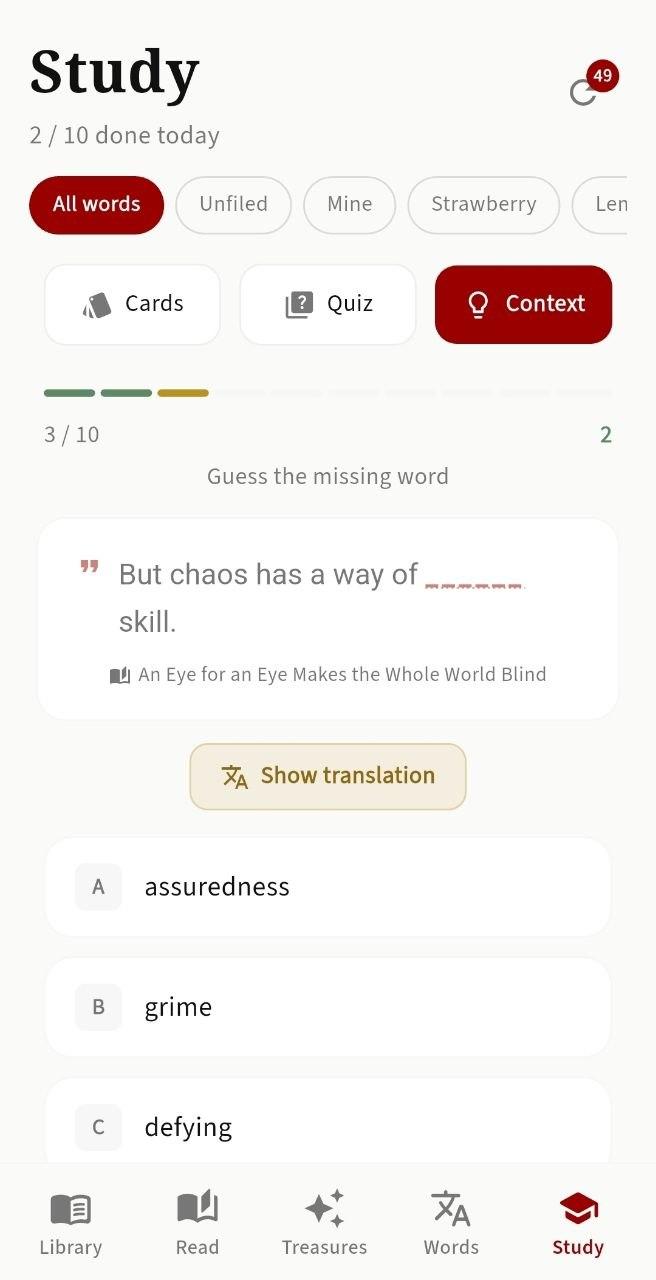
Context — fill in the blanks
The hardest mode. The app shows you a sentence from a fanfic with one word missing — you have to recall which word it was. This works only for words that have a saved context.
How spaced repetition works
The review schedule is run by the SM-2 algorithm (the same one Anki uses). If you remember a word correctly, the interval until its next review grows. If you miss it, the interval resets. Over time, learned words show up less and less, while tricky ones come back more often.
Intensity
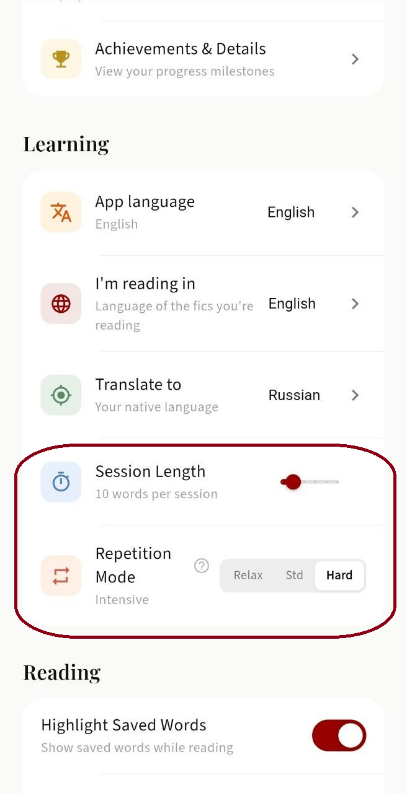
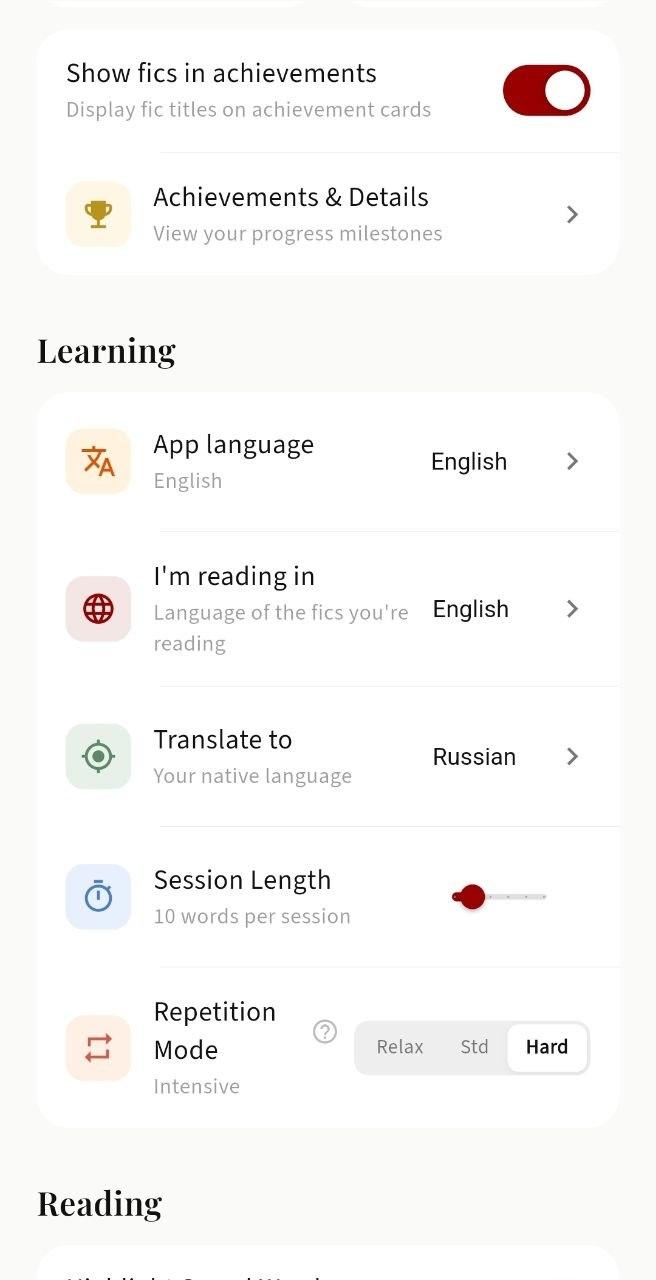
You can choose in Settings how often words come back for review. Relaxed — once a day. Standard — three times a day. Hard — as often as possible, for those who want to push the pace. You can also set how many words appear in each session — anywhere from 5 to 30.
Achievements & Details
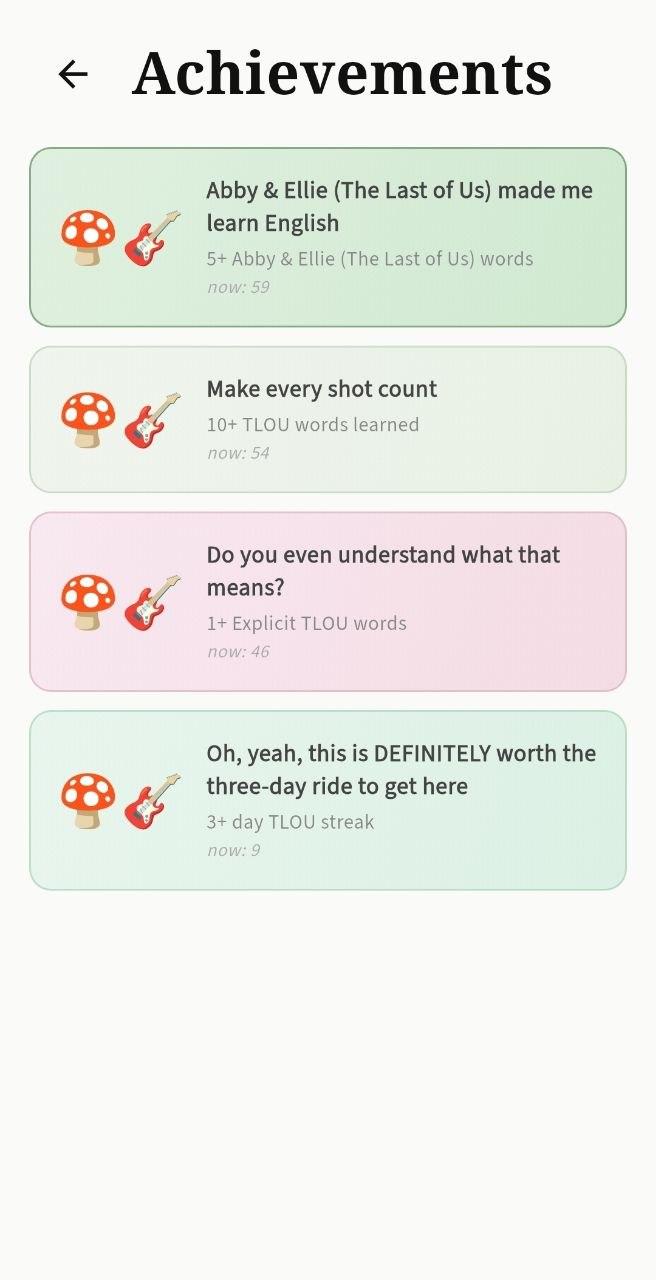
An achievement system that reacts to what you read. Achievements are tied to specific fandoms, pairings, and ratings. The collection grows over time, and if you'd like to suggest your own achievement for a favourite pairing or fandom, fill out this form. We do reserve the right not to add every suggestion, or to tweak the conditions so they fit the rest of the system.
Fandom achievements
Separate achievement sets for Harry Potter, Genshin Impact, The Last of Us, Sherlock, TGCF (Tian Guan Ci Fu), and other fandoms. Most of them are tied to pairings and specific characters. So if you read a lot of Snape/Hermione, you'll get the matching achievement.
Pairing achievements
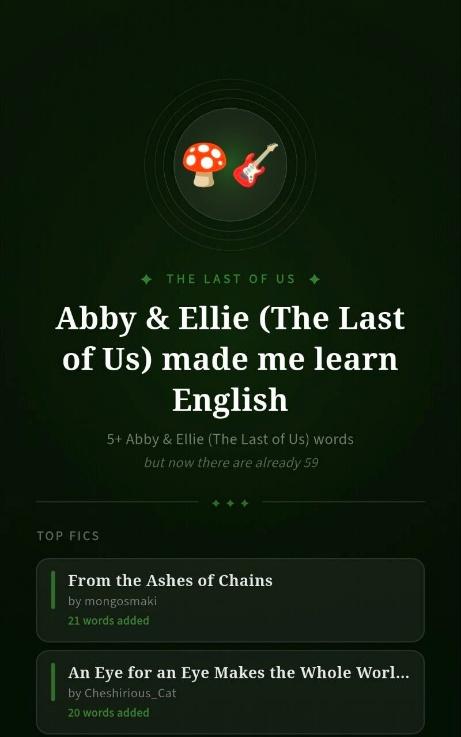
The app counts how many words you've saved from fanfics with a given pairing. Hit the threshold — get the achievement. The app picks up pairings from AO3 tags.
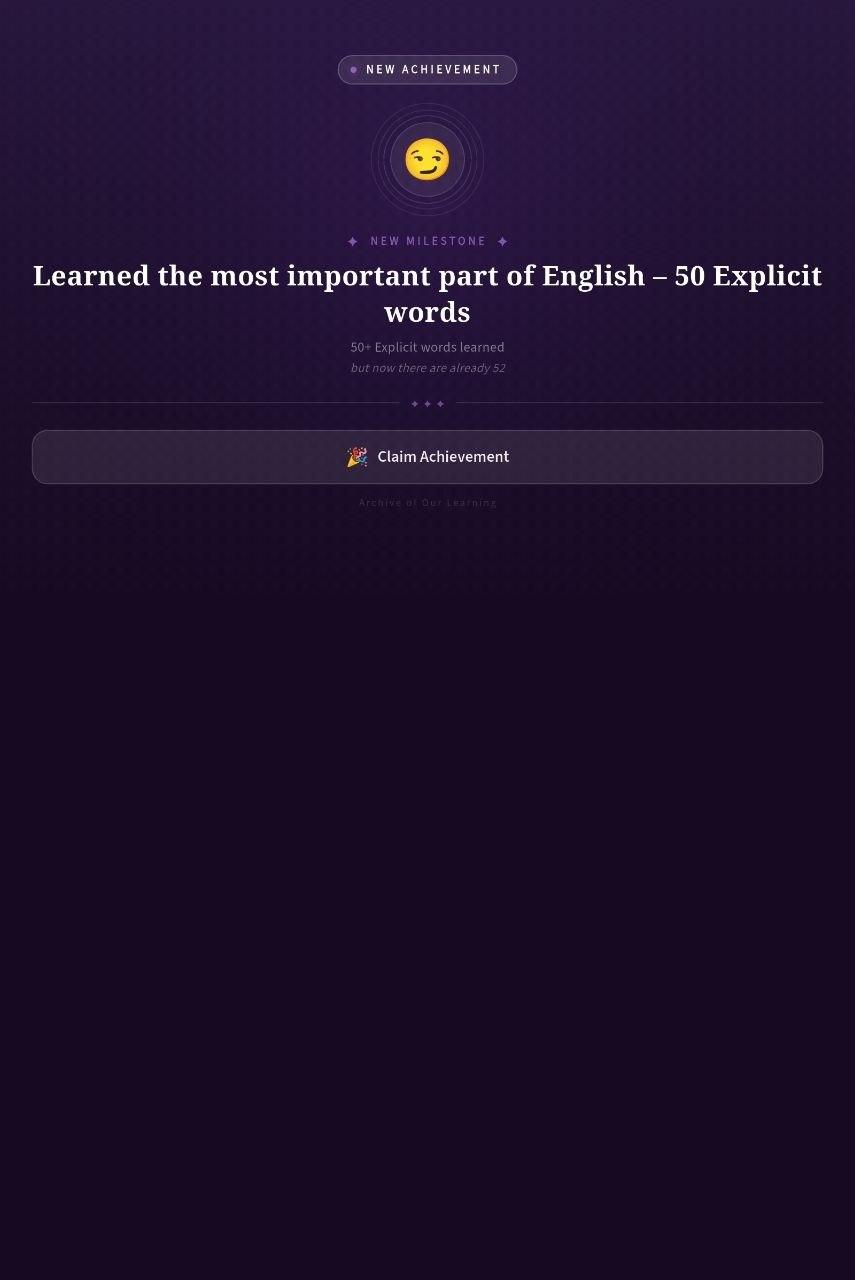
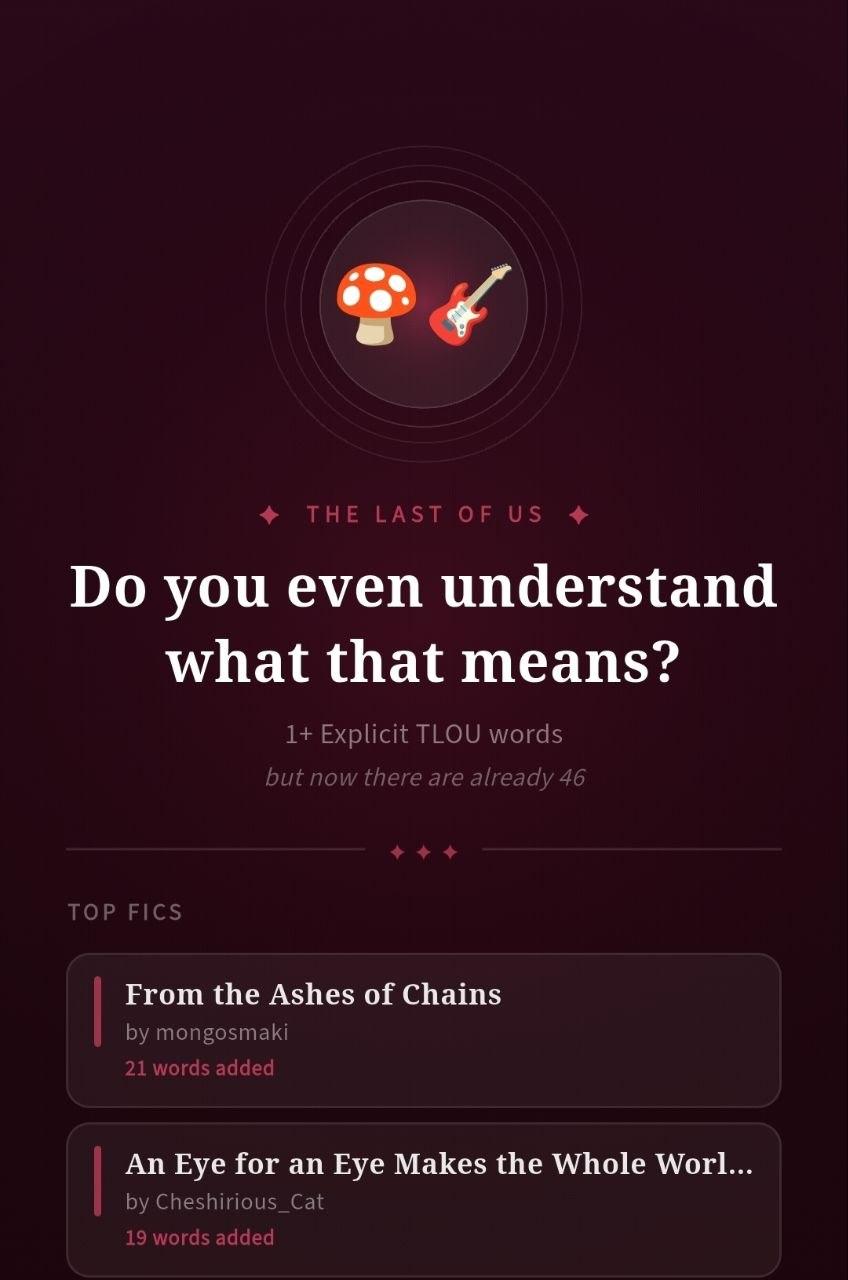
You can switch off fanfic titles in Settings — when you do, the achievement cards won't display fanfic titles.
Opening links from other apps
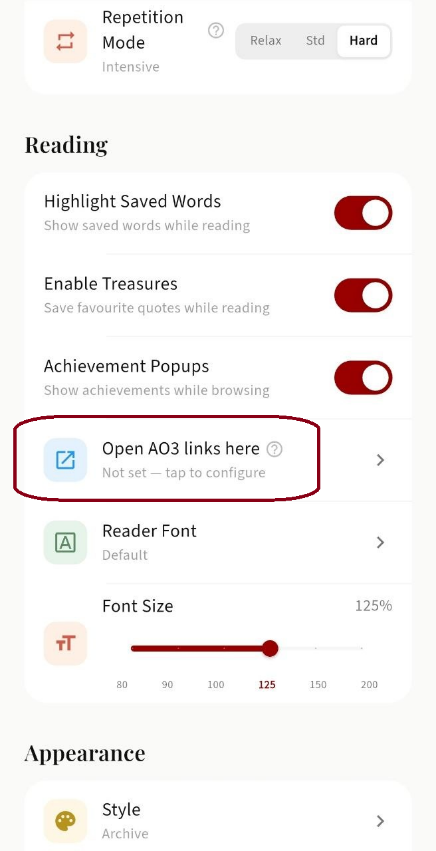
If you tap an AO3 link in Telegram, Twitter, or any other app, Android will offer to open it in Archive Learning (provided you've enabled this in the app's settings and granted the system permission). The fic opens straight in the reader, with all the translation and highlight features available.
This works through deep links — the app is registered to handle archiveofourown.org URLs. You can configure this in the app's settings (the section about opening links from AO3).
Like the project? Leave kudos.
You have already left kudos here. :)
And if you have a minute, leave a review on the App Store, Google Play or the Chrome Web Store. We're a volunteer project. Your ratings are our biggest joy.